Google Tasks is one of the lesser-used apps in the Google Apps suite, but it's a powerful app when you use it to combine and compliment the functionalities of various apps.
Showing posts with label Google Apps. Show all posts
Showing posts with label Google Apps. Show all posts
Friday, May 21, 2021


Wednesday, September 16, 2020
Fall 2020 Inservice Sessions
Moodle for New Instructors (9/21 @ 1pm)
https://linnbenton.zoom.us/j/
Moodle Updates and Things You May Not Know (9/21 @2pm)
Google Apps Tips and Tricks (9/24 @ 12pm)
Moodle Updates and Things You May Not Know (9/24 @ 3pm)
Google Apps Tips and Tricks (9/24 @ 4pm)
Thursday, August 11, 2016
How to Create a Formative Assessment in Google Drawings
It's surprisingly easy to create effective formative assessments in Google Drawings. Check it out here.
Friday, May 27, 2016
How to Find a Time Among Multiple People in Google Calendar
Have you ever spent more time scheduling a meeting among multiple people than the meeting itself? It's surprisingly simple and easy to avoid that, and schedule a meeting during an available time slot among all of your guests.
Monday, November 23, 2015
Uploading Multiple Events to a Google Calendar
Do you have a bunch of events that you need to place into a Google Calendar? You can do it one-by-one in the Google Calendar interface, but that can get pretty tedious pretty quickly, especially if you have a few dozen (or hundred!) events to post. Luckily, Google Calendar speaks the language of the CSV file. To get started, log into your Gmail or Google Apps for Education account and click this link to my template spreadsheet. It will prompt you to make a copy for yourself.
1. Fill in your events, following the formatting of the date and time indicators:

2. Doublecheck your entries, and download your spreadsheet as a .CSV file:

3. Go to the settings area for your Google Calendars. Make sure you click the little disclosure triangle for "My Calendars" and not an individual calendar:

4. Look for the "Import calendar" link and click it:

5. A popup will appear. Browse for your .CSV file:

6. Select the calendar you want the events in your spreadsheet to appear.

7. If you formatted the .CSV file properly, all of your events will be uploaded and processed into the Google Calendar you indicated, with dates, times, descriptions, and locations all in place:
 Pretty cool, huh?!
1. Fill in your events, following the formatting of the date and time indicators:

2. Doublecheck your entries, and download your spreadsheet as a .CSV file:

3. Go to the settings area for your Google Calendars. Make sure you click the little disclosure triangle for "My Calendars" and not an individual calendar:

4. Look for the "Import calendar" link and click it:

5. A popup will appear. Browse for your .CSV file:

6. Select the calendar you want the events in your spreadsheet to appear.

7. If you formatted the .CSV file properly, all of your events will be uploaded and processed into the Google Calendar you indicated, with dates, times, descriptions, and locations all in place:

Friday, September 18, 2015
Google Docs and Track Changes…
So you say you don't use Google Docs because you must have the "Track Changes" feature of Microsoft Word. Or maybe it's Mail Merge you can't live without. In typical Google fashion, they have taken those concepts to a whole new level (not to mention Revision History, Notifications, Bookmarks, etc.):
Think of the educational and administrative implications of these advancements - it's mind-boggling!
Think of the educational and administrative implications of these advancements - it's mind-boggling!
Wednesday, April 29, 2015
Google Docs Sharing Basics
This blog post covers the basics of sharing of Google Docs, Sheets, and Slides.
You can share a Google Doc (to include Docs, Sheets, and Slides) by right-clicking on the doc in your Google Drive and selecting "Share… Share…"

If you are viewing a doc, you can also click the blue "Share" button in the upper right:

Either method above makes the "Share with others" dialog box:
 The simplest and most straightforward way to share the doc is to start typing the name of the person with which you want to share the doc. By default, the doc will be shared with an editing privilege, unless you want a different setting:
 Commenting is a handy way to hold a discussion on a document, and viewing is for letting people see, but not edit or comment. Keep in mind that all three sharing privilege settings will allow the recipient to make a copy of the doc that they will own and have full editing rights.
Note the "Notify people via email" checkbox on the lower right is checked by default. That will general an email message to your recipient(s) with a link to the Google Doc you are sharing. If you uncheck that box, they will have to look in their "Shared with Me" section of their Google Drive.
Want to explore more options for sharing? Click the "Get shareable link" feature in the upper right of the "Share with others" and then the little disclosure triangle to the left of "Copy link:"

Click "More…" at the bottom for even more options. Explore what all of those options enable you to do in sharing Google Docs, and you will begin to wonder how you ever got by without these tools and techniques!
If you discover a useful feature or process, be sure to share it in the comments below.
You can share a Google Doc (to include Docs, Sheets, and Slides) by right-clicking on the doc in your Google Drive and selecting "Share… Share…"
Either method above makes the "Share with others" dialog box:
Note the "Notify people via email" checkbox on the lower right is checked by default. That will general an email message to your recipient(s) with a link to the Google Doc you are sharing. If you uncheck that box, they will have to look in their "Shared with Me" section of their Google Drive.
Want to explore more options for sharing? Click the "Get shareable link" feature in the upper right of the "Share with others" and then the little disclosure triangle to the left of "Copy link:"
If you discover a useful feature or process, be sure to share it in the comments below.
Monday, February 23, 2015
How To Force a Copy of a Google Doc
You probably know you can share a Google Doc with varying levels of privilege. The default setting is “Can Edit,” but there are two other settings, as well:

Those are great, but what if you need to share a Doc (or Sheet, or Slide) in a way that will let the other person(s) view only, but also optionally make a copy for themselves? You can tell them to click File > Make a Copy…

… but you know someone will eventually not understand that, and have issues with that step.
What if there was a way to force them to copy the Doc before they could even see it… maybe with a special link that will take them to a page that looks something like this:
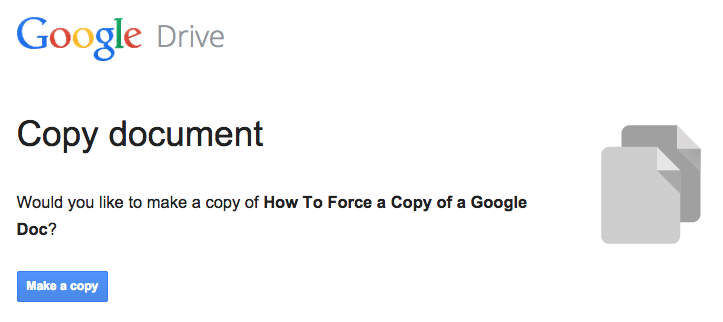
Funny thing is, this little trick so so easy, you will wish you had thought of it first. All you need to do is:
- Share the Doc (via the
button, in any context: editing, commenting, or just viewing) with the person on the other end, and then copy the link in your browser address bar.
- Look for the word “edit” at the end of the URL:
https://docs.google.com/document/d/11V9qEndTXVmnVEvtZMRk0cQefcdF5TxwqFQSvVlIcjE/edit
- Replace it with “copy,” and send that to them:
https://docs.google.com/document/d/11V9qEndTXVmnVEvtZMRk0cQefcdF5TxwqFQSvVlIcjE/copy
BOOM - it really is that easy!
NOTE: Have you ever seen a long URL link the ones above in an email message, and it didn't work when you clicked on it? That's usually because part of the URL was wrapped down to the line below it, breaking the valid link. A great way to avoid that is to shorten the URL via a tool like bitly.com.
NOTE: Have you ever seen a long URL link the ones above in an email message, and it didn't work when you clicked on it? That's usually because part of the URL was wrapped down to the line below it, breaking the valid link. A great way to avoid that is to shorten the URL via a tool like bitly.com.
Friday, January 23, 2015
How to Schedule Gmail Messages
I am hesitant to use 3rd-party apps in my Gmail until & unless someone I know has recommended it. Luckily, I keep this page bookmarked for just such an occasion. Let me know what you think of it!
Monday, January 19, 2015
Build a New Model
Ok, we have built a new model of effective and efficient face-to-face, online, and hybrid education. What's our next step toward greater adoption, Mr. Fuller?

Monday, December 15, 2014
The Future of Gmail?
PSST: Want sneak peek of Gmail's future?
Ok, it's not confirmed that Gmail will inherit Inbox's interface, but it is interesting to imagine, huh?
Ok, it's not confirmed that Gmail will inherit Inbox's interface, but it is interesting to imagine, huh?
Wednesday, October 1, 2014
Announcing Google Drive for Education
In a little over two years, Drive has become the cloud storage and sharing solution for more than 190 million people worldwide who use it regularly at home, work and school. For many of the 30 million students and educators using Google Apps for Education, Drive has even replaced their bookbags. Why lug around piles of paper or overstuffed binders when every type of document or file can be retrieved from the nearest Chromebook, tablet, smartphone or browser?
Read more here.
Read more here.
Tuesday, September 30, 2014
Create & Submit A Writing Assignment for Moodle Via Google Docs, Spreadsheets & Presentations
PSST: Guess what? Unless you are taking a class on a Microsoft Office product (Word, Excel, PowerPoint), you probably don't need Microsoft Office (that goes for real life, too). Do you have a writing assignment to turn in? Here's how to do it in Google Docs, without printing a single page (with one exception):
First, if you are just starting to use Google Drive, Check your Google Drive Upload Settings. You will be creating a doc, not uploading a file in this tutorial, but this will be handy for when you start uploading files into your Google Drive.
Step #1: When you are logged in to your LBCC Email, click the nine tiny squares in the upper right, and then click on the "Drive" icon:

Step #2: Click the red "New" button in the upper left, then click "Google Docs"

A new browser tab will open with your new doc ready to go.
Step #3: Click where you see "Untitled document" in the upper left:


PAPER SUBMISSION: If your instructor has set up your assignment to require a hard copy, you can print it out and hand it in. You've done this before. You know what to do:

First, if you are just starting to use Google Drive, Check your Google Drive Upload Settings. You will be creating a doc, not uploading a file in this tutorial, but this will be handy for when you start uploading files into your Google Drive.
Step #1: When you are logged in to your LBCC Email, click the nine tiny squares in the upper right, and then click on the "Drive" icon:
Step #2: Click the red "New" button in the upper left, then click "Google Docs"
Step #3: Click where you see "Untitled document" in the upper left:
Give your doc a name that makes sense:
Step #4: Your instructor may choose among a variety of assignment submission procedures:
TEXT INPUT: If your instructor has set up your assignment to require text input, you can select and copy all of the text from your Google Doc, and paste it into the Moodle assignment text input box.
FILE SUBMISSION: If your instructor has set up your assignment to require a file upload, you can download your Google Doc into the required file type, and upload it into the Moodle assignment:
GOOGLE DOC SHARE: If your instructor has set up your assignment to require you share your submission with them via Google Drive, you can do so via the blue "Share" button in the upper right:
Click in the "Invite people" field and start typing your instructor's name. Be sure to indicate their staff account (@linnbenton.edu), and not their student account (@mail.linnbenton.edu):
Indicate their sharing privilege setting (most likely "Can comment"), and then click the blue "Send" button:
Step #5: Be sure to follow any additional instructions in the Moodle assignment to finalize your assignment submission.
Tuesday, March 4, 2014
How to Publish a Google Doc in a Moodle Course
One of the best ways to publish eLearning content is via Google Docs, rather than as a page within your LMS (Learning Management System). This will allow you to keep all of your course content in one place (Google Drive), from which you can edit with no need to republish.
Step 1: From within a Google Doc you wish to publish in your Moodle course, click File > Publish to the web… (NOTE: not the “File” menu for the browser itself):

Step 2: In the “Publish to the web” dialog that appears, note the available checkboxes. We recommend leaving them both as-is. Click “Start publishing.”
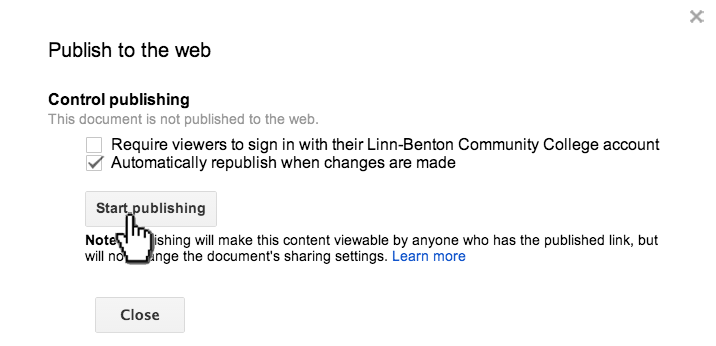
Step 3: Click “OK.”

Step 4: In the “Publish to the web” dialog, click in the “Document link” field and copy the link to the clipboard.

Step 5: In your Moodle course, turn editing on:
and click in the content block where you wish the link to appear.

Step 6: In the “Add an activity or resource” dialog box, select “URL,” then click the “Add” button:

Step 7: This is the “Adding a new URL” page. Note that the field with asterisks are required. Also, we recommend indicating the link to appear in a new browser window. Make your inputs and selections, and click the “Save and return to course” button at the bottom.
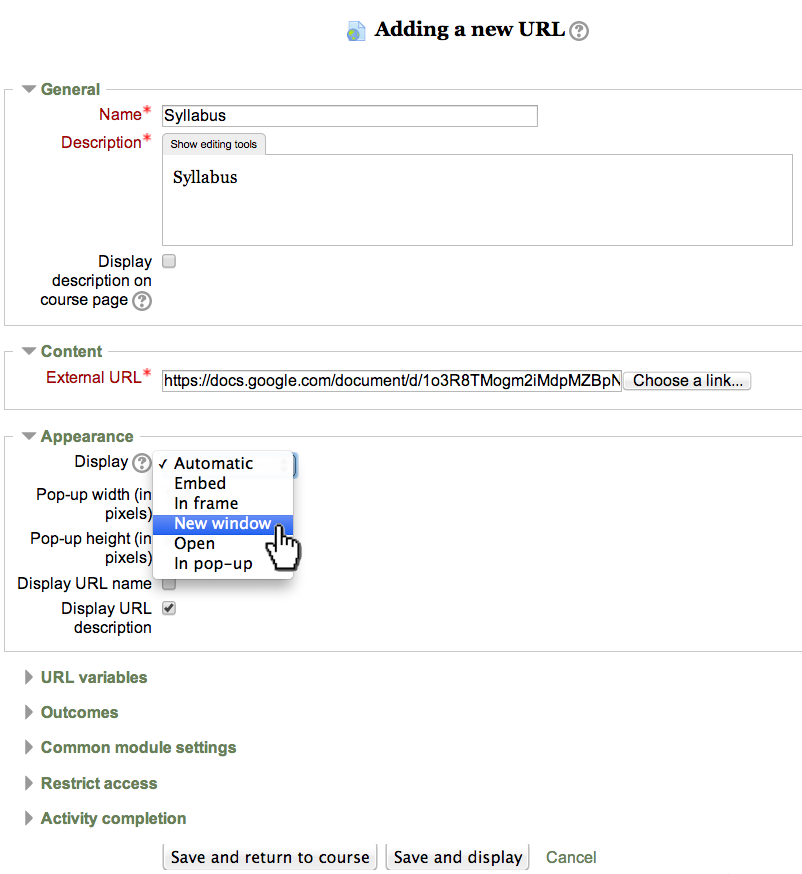
Step 8: Locate your new link, and move it, if necessary (with the “” icon), then test it out by clicking the link. It should open in a new browser window or tab.

OPTIONAL: You can shorten the URL via bit.ly. The link for the published version of this Google Doc is: http://bit.ly/1hDp20U
Sunday, December 15, 2013
Update to the Missing Google Menu Bar Issue
Here is an update to our previous "What!? Google Changed the Interface Again!!!?" post!
Apparently, not every "interface improvement" is a true improvement for everyone. To prove the point, a tech-savvy Google user has come up with a browser extension to restore the useful Google menu bar to its rightful location (and helping us return to one-click navigation!). Behold the Proper Menubar!
Thanks to Perry Carmichael for passing this along.
Apparently, not every "interface improvement" is a true improvement for everyone. To prove the point, a tech-savvy Google user has come up with a browser extension to restore the useful Google menu bar to its rightful location (and helping us return to one-click navigation!). Behold the Proper Menubar!
Thanks to Perry Carmichael for passing this along.
Monday, November 4, 2013
What!? Google Changed the Interface Again!!!?
Are you missing the links along the top of your browser window when you're in Gmail to get to your Google Calendar, Drive, etc.? Well, Google went and made things… better for us again. Here is where you can find those links now (in the upper right):

PS: If you thought you might have been going crazy before reading this post, please note that just because you discovered that this issue was related to Google changing the interface does not mean you aren't crazy.

PS: If you thought you might have been going crazy before reading this post, please note that just because you discovered that this issue was related to Google changing the interface does not mean you aren't crazy.
Subscribe to:
Posts (Atom)