Showing posts with label LBCC Moodle. Show all posts

Tuesday, October 3, 2023

The Proper Moodle Mobile App for LBCC

We have sensed some student confusion on which Moodle mobile app to use. The regular, official Moodle Mobile app is not compatible with LBCC Moodle, but that's not a bad thing, because the app that does work has more features! Here is the app you DO NOT want:


… and here is the app you DO want:


If you would like some clear instructions for your students, here you go:


1. Click to get the Open LMS mobile app or scanning the QR code below.


2. Launch the app and enter this URL (one time only) into the app text field: moodle.linnbenton.edu

3. Use your login credentials to sign in to the LBCC Single Sign-On (SSO) portal.

Monday, September 25, 2023

Moodle Announcements Forum Duplication

New Moodle courses have an Announcements forum pre-loaded, and thus, care must be taken when importing content so as to not duplicate this forum because having more than one will break the emailing processes.


Also check out our new eLearning Support site (bookmark it!), where you will find all kind of great support info and resources, including most of our help guides. We are adding great stuff to the site, so stay tuned!

Wednesday, January 3, 2018

Moodle 3.3 Upgrade Info

Our Moodle site was upgraded to version 3.3 on December 28. We have identified a number of interesting and useful improvements we believe will enhance your Moodle course development and delivery experience, as well as benefit your students:
Dashboard / Course Overview Block
For a more complete list of all Moodle 3.3 updated and new features, click here.

Be on the lookout for further details on these features. We encourage you to explore them, and let us know what you think!

Friday, November 17, 2017

Moodle Language Pack Updates

You may have noticed various instances of what appear to be misspelled words (enrol, enrolment, etc.) in our Moodle system, but those are actually Australian spellings. We have customized a number of them to US spelling, but if you would like to temporarily switch over to the "English - United States" language pack, it's simple. Log in to LBCC Moodle and look at the language selector at the top of the page:


It's that easy!

If you like the English - United States language pack, you can make the switch permanent:

1. Click the little disclosure triangle next to your name and picture in the upper right of any LBCC Moodle page, and click "Preferences."


2. Click the "Preferred language" link.


 3. Select "English - United States (en_us). And yes, that is "English Pirate" you also see there. Good luck with that.


4. Click the "Save changes" button.


Monday, January 23, 2017

Moodle TurnItIn Assignment 2

Are you having trouble updating the TurnItIn Assignments in your Moodle course(s)? It's probably because TurnItIn is slowly decommissioning their "TurnItIn Assignment" in favor of the new & improved "TurnItIn Assignment 2" (real original, huh?). Go ahead and explore the new version.


We will deactivate all instances of the obsolete "TurnItIn Assignment" in LBCC Moodle at 4pm on June 23, 2017.


This means your existing instances of the obsolete TurnItIn Assignment will disappear, and only the "TurnItIn Assignment 2" will be available in the "Add an activity or resource" popup:

To convert your existing obsolete version TurnItIn Assignments to the new version, simply copy and paste from the settings page of the old to the new. When you build instances of the new version, you will also notice additional features. We recommend taking a close look at those settings, making selections that will work for all similar instances of those activities, and then duplicating as many instances as you need for use throughout your Moodle course. Need help?

You know who to call. 😉

Friday, January 13, 2017

Students "Opting Out" Of LBCC Email = No Moodle Auto-Enroll

Scenario:

A student tells you they don't have access to your Moodle course. You have determined:

  • they are registered for your course (and not just on the waitlist)
  • you have set up your Moodle course for automated enrollments
  • all of your other registered students have access to your Moodle course

But not this student. Why not? Chances are, the student in question has "opted out" of LBCC email messages. This status currently prevents student Moodle accounts from being auto-enrolled in Moodle courses (we're working on it!).

In the past, we have recommended that you send those students to the Student Help Desk (in the Library), who will then send them on to Registration to cancel the "opt out" status in Banner, but there is a way to determine that for the student in WebRunner, and send them directly to Registration:

1. Log in to your WebRunner account
2. Click "Faculty and Advisors."


3. Click "Summary Class List."


4. Click "Select Term and submit.


5. Click "Select a CRN" and submit.


6. This will deliver a class roster. Find the student with the Moodle access issue, and if they don't have a little mail icon to the far right of their name, CONGRATULATIONS! You have discovered the issue!


Now all you need to do is instruct the student to visit the Admissions and Registration Department (in Takena Hall) and request to have the "Email Opt Out" status on their Banner account removed. That will trigger auto-enrollment into their course(s) running in Moodle. Congratulations - you are part of the solution!

Friday, December 18, 2015

10 Awesome Time-Saving Features in the Latest Moodle Release

LBCC's Moodle system will be updated to version 2.9 over the holiday break. Read the highlights of the new features here.

Friday, January 3, 2014

Moodle 2.5 Course Availability

We upgraded to Moodle version 2.5 over the holiday break, and one of the first changes we noticed happens to be one of the things you will need to know at the beginning of the term: how to make your course(s) available to students.

It's still in the "Settings" area, but now it's closer to the top:


If you click the "" you will see some helpful info:

Tuesday, October 29, 2013

User Overrides in Moodle Quizzes

Here is a question we get asked fairly frequently: "CFAR (Center For Accessibility Resources) has authorized a student to receive more time (or other accommodation) on the quizzes in my Moodle course. How do I facilitate that?"

Here's how:


In your Moodle course, click into a quiz for which you need to make student accommodation.


1. Click the settings gear in the upper right

2. Click the "Add user override" button

3. Search for your student's name

4. Select among the available override settings

5. Click the "Save" or "Save and enter another override" button:


Do this for each quiz in your Moodle course, and you will be all set!

Friday, October 11, 2013

Moodle Written Assignment Submissions Via Google Docs

Here is how to share an assignment worksheet in a way that Students will be able to view, make a copy for themselves to edit, and submit it for a written assignment without printing a single page - your students will appreciate that! Feel free to offer suggestions for improving this tutorial by commenting below.


Phase 1 - Check Your Google Drive Upload Settings
Step 1: Trust me on this one, ok?
Step 2: In Google Drive, click the Settings gear in the upper right and adjust your Upload settings to "Confirm setting before each upload."

It may not seem obvious at first, but trust me - there will be times when you want to convert files, and times you don't. This setting has saved me from… well, just trust me on this.


Phase 2 - Prepping Your Google Doc
Step 1: Upload your worksheet to your Google Drive (or copy and paste it into a new Google Doc).
Step 2: Click the blue “Share” button in the upper right.
Step 3: Click the “Change…” link to the right of “Private - Only the people listed below can access”


Step 4: Decide on an appropriate sharing setting (pay attention to the help text below each setting), and click “Save” at the bottom left.


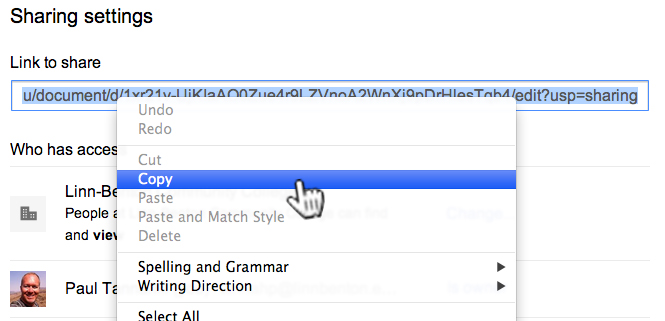
Step 5: Copy the link in the “Link to share” field. This is the link you will paste in the Moodle Assignment “Description” field for your Students to click to access the worksheet.


Phase 3 - Building Your Moodle Assignment

Instructor: copy & paste the below instructions into your Moodle Assignment “Description” field. Be sure to add the hyperlink in Step 2 below to the published version of your Google Doc starter worksheet (if any).


Step 1: Log into your LBCC RoadRunner acount.
Step 2: Click here to view the worksheet for this assignment. This will open in a new browser tab in Google Docs.
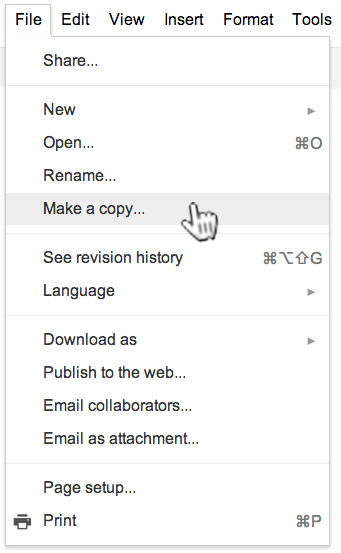
Step 3: File menu > Make a copy…


This will save a copy of the Google Doc that you own, and can edit.
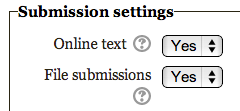
Step 4: (Instructor: Depending on your preferences, and your Assignment  “Online text” and “File submissions” settings, choose one of the following suggested instructions, and edit to your liking);


Edit the Google Doc, using bold and red font for clarity when I grade your work. Once you are finished, submit in the Moodle Assignment by copying and pasting the entire doc contents into the submission box.


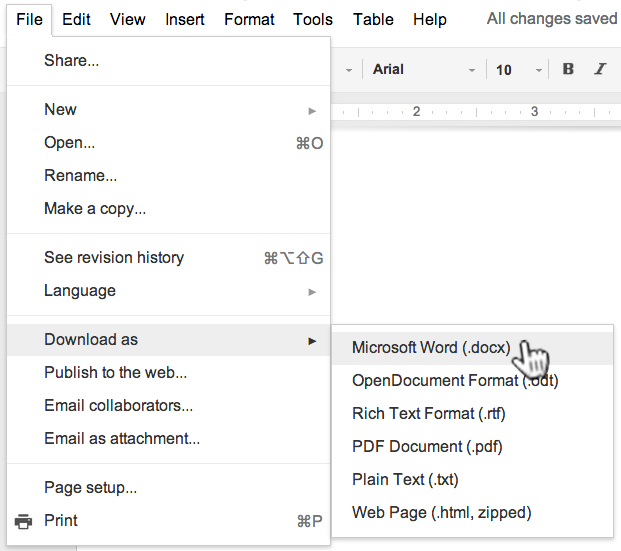
Download the Google Doc as a Word file (File > Download as > Microsoft Word (docx):


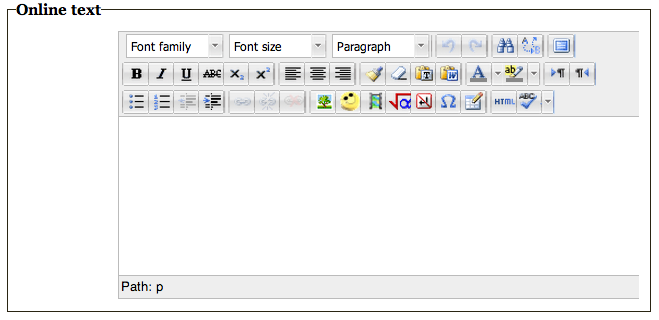
Depending on how your instructor has set the assignment submission settings, paste the text from the Word doc via the “Online text” area:


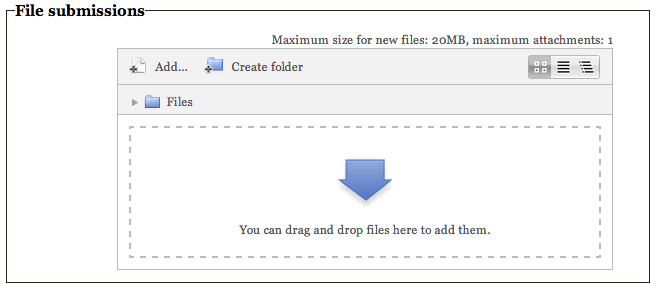
and/or upload the File here:


Be sure to click the “Saved changes” button at the bottom:


IMPORTANT:


The above two submission options require the proper Submission settings in your Assignment “Settings” area:


You can test the assignment by enrolling and logging into one of the test student accounts in your course.

Friday, September 6, 2013

Progression in Moodle

Moodle's founder and Lead developer, Martin Dougiamas, has written about how he sees the typical progression a teacher might go through as they learn to use the Moodle tools. His list is reproduced below. Where would you like to be?

Moodle needs to be flexible to cater for a wide variety of needs while remaining simple enough for ordinary teachers to start making good use of the power of the internet for community building and collaborative learning. My hope is that Moodle can be seen as a toolbox where they can start simply and naturally, and then progress to more and more advanced community facilitation over time. Ultimately, we'd like to see teachers being involved with and supported by a community of their peers.

  1. Putting up the handouts (Resources, SCORM)
  1. Providing a passive Forum (unfacilitated)
  1. Using Quizzes and Assignments (less management)
  1. Using the Wiki, Glossary and Database tools (interactive content)
  1. Facilitate discussions in Forums, asking questions, guiding
  1. Combining activities into sequences, where results feed later activities
  1. Introduce external activities and games (internet resources)
  1. Using the Survey module to study and reflect on course activity
  1. Using peer-review modules like Workshop, giving students more control over grading and even structuring the course in some ways
  1. Conducting active research on oneself, sharing ideas in a community of peers

Source: Moodle Pedagogy

Thursday, May 28, 2009

LBCC Moodle Instructor Development Sites


If you are an LBCC Faculty or Staff member, and want to dive in to Moodle, get with Paul Tannahill to set it up for you.

Monday, April 13, 2009

The Philosophy Behind Moodle

The design and development of Moodle is guided by a "social constructionist pedagogy".

From a constructivist point of view, people actively construct new knowledge as they interact with their environments.

Constructionism asserts that learning is particularly effective when constructing something for others to experience. This can be anything from a spoken sentence or an internet posting, to more complex artifacts like a painting, a house or a software package.

Social constructivism extends constructivism into social settings, wherein groups construct knowledge for one another, collaboratively creating a small culture of shared artifacts with shared meanings. When one is immersed within a culture like this, one is learning all the time about how to be a part of that culture, on many levels.

Read more here.