Showing posts with label Gmail. Show all posts
Showing posts with label Gmail. Show all posts
Thursday, April 8, 2021
Create a Calendar Event from a Gmail Message
Have you ever decided to hold a meeting based on an email message thread, and then navigated back and forth between your Gmail and Google Calendar to create the event? Here is how you can make Gmail and Google Calendar do all of the work for you… PLUS an added-value trick you may not know about!


Wednesday, April 18, 2018
How to Put an "Add to Google Calendar" Link in an Email Message
Have you ever thought it would be nice to include an "Add to Google Calendar" link in the body of an email message you are sending out to announce an event? Here is one way to make it easy for your email recipients to add a copy of YOUR event to THEIR Google Calendar. This works for one-time events, as well as recurring events!
Se it in action here.
Friday, December 1, 2017
Default Text in Gmail
Want to make the body text in your Gmail messages stand out from the crowd, and/or make it more readable than the regular system default ol' font and size most everyone else uses? Get yourself a new default text setting! Click the little gear button in the upper right in your Gmail, and then click on Settings:

From there, look for the "Default text style" area. Here is how I have my Gmail default text set:
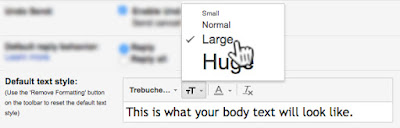
From there, look for the "Default text style" area. Here is how I have my Gmail default text set:

Wednesday, March 15, 2017

GMAIL: How to MUTE a conversation
MUTE a conversation when your LBCC Inbox is filling with replies to a conversation you'd rather not see. Once muted, additional replies are instantly archived. Only replies specifically addressed to you will appear. HINT: if a message mysteriously goes missing, you may have muted it accidently with the m keyboard shortcut!
How to Mute/Unmute a conversation:
Option 1: open a message, select More, then select Mute (or Unmute).

Option 2: use *keyboard shortcut m .
(*you must have keyboard shortcuts enabled in Settings, General)
How to locate muted conversations:
Type is:muted in the Search box.
Monday, December 5, 2016
Images and Formatted Text in Gmail
GREAT NEWS! You can now paste content into Gmail and all of the formatting and images will remain intact.
Read more here.
Thanks for the heads-up, Chad Bordes!
Read more here.
Thanks for the heads-up, Chad Bordes!
Monday, September 28, 2015
Appointment Slots in Google Calendar
Wouldn't it be great if you could send out, or publish a link that people could click, and be taken to a view of your calendar, where they could see available appointment slots, and all they had to do to make an appointment with you is click an available slot, and then the event appears on both your and their calendar? Welcome to Appointment Slots!
1. Important: Make sure you are in Week or Day view. Click into any date/time area on your Google Calendar, and a popup will appear. Click "Appointment slots" at the top of the popup, and then "Edit details" at the bottom:

2. This is where you will do all (and it's not much) of the heavy lifting:

3. Make sure you put something into the "Title" field that will make sense to both you and your end user. For example, if you are setting up advising appointments with students, rather than "Appointment," consider "Advising Appointment."
4. You are likely using Appointment Slots in a repeating fashion. If so, click the "Does not repeat…" checkbox (I usually need to choose "Custom…":


Also be sure to indicate a meeting duration time, and a meeting location in the "Add location" field.
5. Consider something like this in the "Description" field:
Bring your education plan, degree audit documents from DegreeRunner (if you have access) and/or any documents pertaining to your college course of study.
6. Right-click and copy the long, blue URL:

That's what you can send to your students and/or place in your Moodle course and/or email message, etc.
7. Click the blue "SAVE" button in the upper left:

Here is what it looks like when I access someone else's Appointment slots link:

Check out all of those appointment slots - I can seem them in context with my other appointments!
When someone clicks to reserve a time slot with you, here is what they will see:

Note that they can customize the details of the event after they save it.
Pretty nifty, huh? I think you've got enough to go on, so go ahead and tinker with your own Appointment Slots. And share your impressions and experience in the comments section below!
1. Important: Make sure you are in Week or Day view. Click into any date/time area on your Google Calendar, and a popup will appear. Click "Appointment slots" at the top of the popup, and then "Edit details" at the bottom:

2. This is where you will do all (and it's not much) of the heavy lifting:
3. Make sure you put something into the "Title" field that will make sense to both you and your end user. For example, if you are setting up advising appointments with students, rather than "Appointment," consider "Advising Appointment."
4. You are likely using Appointment Slots in a repeating fashion. If so, click the "Does not repeat…" checkbox (I usually need to choose "Custom…":
I set this series of Appointment Slots to repeat weekly on Mondays and Wednesdays until the end of the term:
5. Consider something like this in the "Description" field:
Bring your education plan, degree audit documents from DegreeRunner (if you have access) and/or any documents pertaining to your college course of study.
6. Right-click and copy the long, blue URL:
That's what you can send to your students and/or place in your Moodle course and/or email message, etc.
NOTE: The Appointment Slot URL is the URL for ALL appointment slots for the Google Calendar in which you are creating the appointment slot. If you need/want a unique URL, make a different calendar for that.
7. Click the blue "SAVE" button in the upper left:
Here is what it looks like when I access someone else's Appointment slots link:

Check out all of those appointment slots - I can seem them in context with my other appointments!
When someone clicks to reserve a time slot with you, here is what they will see:

Note that they can customize the details of the event after they save it.
Pretty nifty, huh? I think you've got enough to go on, so go ahead and tinker with your own Appointment Slots. And share your impressions and experience in the comments section below!
For more info, see Google's Help Center page on Appointment Slots.
Friday, January 23, 2015
How to Schedule Gmail Messages
I am hesitant to use 3rd-party apps in my Gmail until & unless someone I know has recommended it. Luckily, I keep this page bookmarked for just such an occasion. Let me know what you think of it!
Monday, December 15, 2014
The Future of Gmail?
PSST: Want sneak peek of Gmail's future?
Ok, it's not confirmed that Gmail will inherit Inbox's interface, but it is interesting to imagine, huh?
Ok, it's not confirmed that Gmail will inherit Inbox's interface, but it is interesting to imagine, huh?
Sunday, December 15, 2013
Update to the Missing Google Menu Bar Issue
Here is an update to our previous "What!? Google Changed the Interface Again!!!?" post!
Apparently, not every "interface improvement" is a true improvement for everyone. To prove the point, a tech-savvy Google user has come up with a browser extension to restore the useful Google menu bar to its rightful location (and helping us return to one-click navigation!). Behold the Proper Menubar!
Thanks to Perry Carmichael for passing this along.
Apparently, not every "interface improvement" is a true improvement for everyone. To prove the point, a tech-savvy Google user has come up with a browser extension to restore the useful Google menu bar to its rightful location (and helping us return to one-click navigation!). Behold the Proper Menubar!
Thanks to Perry Carmichael for passing this along.
Monday, November 4, 2013
What!? Google Changed the Interface Again!!!?
Are you missing the links along the top of your browser window when you're in Gmail to get to your Google Calendar, Drive, etc.? Well, Google went and made things… better for us again. Here is where you can find those links now (in the upper right):

PS: If you thought you might have been going crazy before reading this post, please note that just because you discovered that this issue was related to Google changing the interface does not mean you aren't crazy.

PS: If you thought you might have been going crazy before reading this post, please note that just because you discovered that this issue was related to Google changing the interface does not mean you aren't crazy.
Subscribe to:
Posts (Atom)