Showing posts with label Google Drive. Show all posts

Thursday, August 16, 2018

PDF Versions in Google Drive

A colleague came to us this morning with an issue regarding Google Drive. She had a PDF in her Google Drive that she had created from a hard copy scan, and when she uploaded another PDF with the same name, she noticed Google Drive had replace the original file with the new file. I had a bit of familiarity with how to update a PDF in Google Drive to a new version manually (more on that later), but hadn't seen or noticed it happening automatically.

When I tested it out for myself, I saw that Google Drive had noticed the second PDF had the same exact name as the original, and updated the original one for me. It also provided this handy popup to inform me of the kind deed:


Of course, a lot of people just click right through those and continue working, but I figured if it's happening to one person, it's happening to others, too, so here is the blog post to cover you.

The solution we landed on comes from right-clicking the PDF in Google Drive, and then clicking "Manage versions…"


That will show a popup from which you can see previous versions:


If you click the "More actions" (three vertical dots) to the right of one of the file versions, you will see… well, more actions you can take:


Now for the ADDED VALUE feature of this post: look at the "UPLOAD NEW VERSION" button in the "Manage versions" popup above. You can manually update a PDF to a new version! That may not seem so exciting until and unless you have a link to a PDF in Google Docs appearing on a website(s), and need to update it. No need to update the URL - just upload a new version!


Wednesday, April 29, 2015

Google Docs Sharing Basics

This blog post covers the basics of sharing of Google Docs, Sheets, and Slides.

You can share a Google Doc (to include Docs, Sheets, and Slides) by right-clicking on the doc in your Google Drive and selecting "Share… Share…"

If you are viewing a doc, you can also click the blue "Share" button in the upper right:

Either method above makes the "Share with others" dialog box:
The simplest and most straightforward way to share the doc is to start typing the name of the person with which you want to share the doc. By default, the doc will be shared with an editing privilege, unless you want a different setting:
Commenting is a handy way to hold a discussion on a document, and viewing is for letting people see, but not edit or comment. Keep in mind that all three sharing privilege settings will allow the recipient to make a copy of the doc that they will own and have full editing rights.

Note the "Notify people via email" checkbox on the lower right is checked by default. That will general an email message to your recipient(s) with a link to the Google Doc you are sharing. If you uncheck that box, they will have to look in their "Shared with Me" section of their Google Drive.

Want to explore more options for sharing? Click the "Get shareable link" feature in the upper right of the "Share with others" and then the little disclosure triangle to the left of "Copy link:"

Click "More…" at the bottom for even more options. Explore what all of those options enable you to do in sharing Google Docs, and you will begin to wonder how you ever got by without these tools and techniques!

If you discover a useful feature or process, be sure to share it in the comments below.

Wednesday, October 1, 2014

Announcing Google Drive for Education

In a little over two years, Drive has become the cloud storage and sharing solution for more than 190 million people worldwide who use it regularly at home, work and school. For many of the 30 million students and educators using Google Apps for Education, Drive has even replaced their bookbags. Why lug around piles of paper or overstuffed binders when every type of document or file can be retrieved from the nearest Chromebook, tablet, smartphone or browser?

Read more here.

Wednesday, August 27, 2014

Publishing a Slideshow Presentation in Moodle

So you want to publish your awesome PowerPoint or Keynote presentation in your Moodle course? Guess what concept gave birth to Google Apps for Education here at Linn-Benton Community College? This one!


We handle publishing of Google Docs and Google Presentations in Moodle courses differently. We publish Docs by linking to them (see how here), and Presentations by embedding them in a Moodle page within your course shell. Here's the step-by-step:

1. Open your Moodle course in one browser tab, and Google Drive in another tab.

2. If you already have the presentation you wish to publish in your Google Drive, skip to step #4; otherwise, click the red "Upload" button, and browse for the file you need:


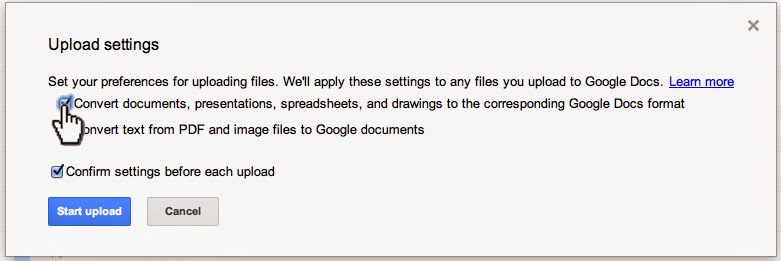
3. Make sure conversion is turned on (note: see how to set your Google Drive conversion settings here):


4. When you are in the editing interface for your Google Presentation, click File > Publish to the Web…


5. You will have a couple of confirmations to click through. Start publishing:


Are you sure (yes, of course I'm sure!):


6. You will get a dialog box that lets you configure the size of the presentation you are about to embed in your Moodle course. Choose "Small" presentation size, so that users on small monitors (think netbooks, etc.) won't have to scroll left and right to view your presentation. They can always choose to view it full screen:


7. Click in the "Embed code" field and copy it to the clipboard:


8. Now go to your Moodle course (that other browser tab), and make sure editing is turned on:

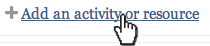
9. Click the "Add an Activity or resource" link in the content block where you want the link to appear (of course, you can always move it later):


10. Select "Page" near the bottom of the left pane:


11. Input in the "Name" and "Description" fields:


12. You may need to click the Toolbar Toggle…


… to get the "Edit HTML source" button visible to click:


13. This makes the HTML source editor dialog box appear. Paste the HTML from the Google Presentation (from step #7 above) into the input box, and click the "Update" button:


14. Click either the "Save and Return to Course" or "Save and Display" button at the bottom.


That's all there is to it. You don't need to redo the above steps if and when you want to edit your presentation; just access it in Google Drive and you're done - it's published and embedded in Moodle (and elsewhere, if you choose), so it's a live document to which your students will have one-click access, without needing anything more than a modern web browser. Cool, huh?

Comment below, and MOODLE ON.

Tuesday, October 15, 2013

Check Your Google Drive Upload Settings

If you haven't used Google Drive (the web interface, not the software you install on your computer), and you're just about to (come on, everybody's doing it!), or you haven't discovered this setting yet, here is a quick way to avoid hassle down the road:

Step 1: Trust me on this one, ok?

Step 2: In Google Drive, click the little gear in the upper right, and then click on "Settings"


Step 3: In the popup dialog, click the "Convert uploaded files to Google Docs editor format" checkbox, and then the blue "Done" button:


It may not seem obvious at first, but trust me - there will be times when you want to convert files (most, if not all of the time), and times you don't. This setting has saved me from… well, just trust me on this.

Tuesday, March 26, 2013

If You Don't Believe in What You Do, Then Why Do You Do It?

Once upon a time, in a previous life as an Employee Development Specialist (a glorified name for "Training Coordinator") with the Federal Bureau of Prisons, I started pushing for what we called "CBT" or Computer-Based Training. I didn't like the term then, and I don't like it now, because, to some it implies that the learning process is completely facilitated by technology. "What am I going to do for work when all the computers take over?" was a question I heard from not only many of the instructors I trained and supported, but from my supervisor, and his, and his, etc.

I was only partially successful in getting them to realize the value of… well, I prefer "eLearning" now, but I'm going to coin a new label soon, so stay tuned for that. Back on topic: I was only partially successful in getting enough people there to realize the true value of CBT before I left for a new position. Actually, I had two things in mind regarding the value and benefit of CBT: content consistency and time flexibility - both very valuable learning concepts - concepts only available since eLearning technology started taking root just a few years ago.

Fast forward about twenty years, and read how 72% of professors who teach online courses don't think their students deserve credit. If you are looking for an answer to the obvious question, "then why are those professors teaching online?" you won't find it in that article. You might enjoy reading the comments below the article, though.


Tuesday, February 12, 2013

How NOT to Deliver an Online Course

An online course offered at Georgia Tech got off to a bad start, and soon thereafter had to be cancelled. Ironically, the course was entitled: “Fundamentals of Online Education: Planning and Application.”

The instructor "…tried to use Google Docs to help the course’s 40,000 enrolled students to organize themselves into groups. But that method soon became derailed when various authors began editing the documents."

Do you know how she could have better deployed those Google Docs? Discuss it below.

Read the full story here.