Showing posts with label google doc. Show all posts
Showing posts with label google doc. Show all posts
Friday, January 19, 2018
How to Print a Google Doc with Comments
A friend asked me if there was a way to print a Google Doc with the comments included in the print job. They added if I had a solution for them, it would save their marriage. I didn't feel like getting into that aspect of the issue too deeply, but I am happy to help a friend's marriage.


Thursday, September 21, 2017
Google Docs Email Collaborators
You have probably attached a Google Doc to a Gmail message via the weird little "Drive" icon button at the bottom left of the email interface:

Did you know you can also easily email any or all of the people who have access to a Google Doc, from within the Doc itself? Check out "Email collaborators" in the "File" menu:

This is one of those "anything you can do to make it easy for people to work together" features.

Did you know you can also easily email any or all of the people who have access to a Google Doc, from within the Doc itself? Check out "Email collaborators" in the "File" menu:

This is one of those "anything you can do to make it easy for people to work together" features.
Tuesday, November 22, 2016
How To Copy A Google Doc
Have you ever wanted/needed to have a copy of a Google Doc? There are actually a few different ways:
If you are viewing a Google Doc, you can make a copy via the "File" menu:

You don't even need to be viewing a Google Doc - you can right-click a Google Doc in Google Drive and click on "Make a copy:"

If you are viewing a Google Doc, you can make a copy via the "File" menu:


Both of the above techniques will work for Google Docs you own, as well as those shared with you (with editing, commenting, or viewing privilege), creating a new copy that you will own.
Pretty simple, huh?
Monday, October 24, 2016
TECH Talk - Publishing & Sharing a Google Doc
There are two paths toward getting other eyeballs on your Google Docs: publishing and sharing.
Friday, October 16, 2015
How To Make a Copy of a Google Doc
When someone shares a Google doc with you with viewing privilege, the menu options along the top of the document are very limited. However, you can make a copy of it and save it to your Google Drive. This will allow you to edit the new document without making any changes to the original. This is a handy setting for you and your students to know when sharing Google docs in your Moodle course.
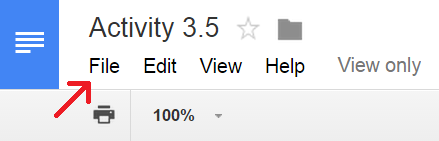
Step 1: Locate the “Make a copy...” option in the File menu
At the top left corner of the document locate and click the File menu to access the pull-down list.
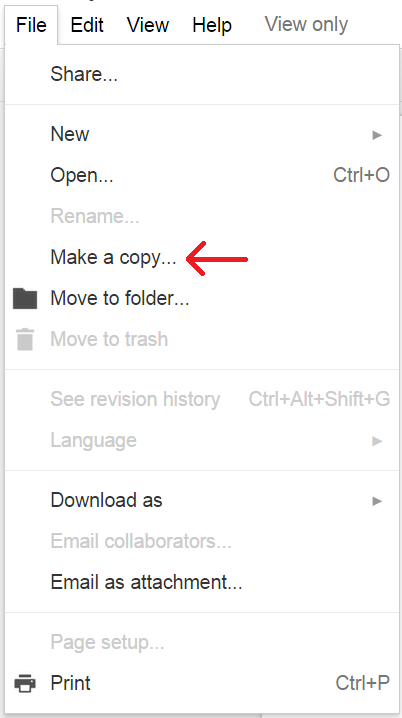
In the pull-down menu, select “Make a copy...”
Step 2: Rename and/or Save to Your Drive
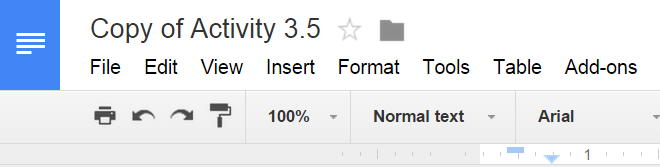
In the pop-up window that appears, you can change the name of the document, if you choose, and then click “OK”. This will open the document in a new browser tab, and all editing and menu options will now appear to you.
Step 3: Move copied Google Doc to your desired location within your Google Drive
The default location of the copied document is in your Drive home. Notice you are now listed as the owner of the file:

Step 1: Locate the “Make a copy...” option in the File menu
At the top left corner of the document locate and click the File menu to access the pull-down list.
In the pull-down menu, select “Make a copy...”
Step 2: Rename and/or Save to Your Drive
In the pop-up window that appears, you can change the name of the document, if you choose, and then click “OK”. This will open the document in a new browser tab, and all editing and menu options will now appear to you.
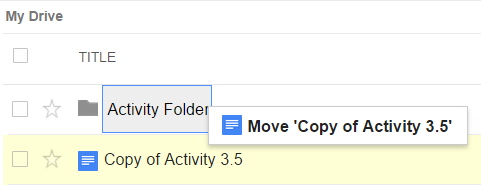
Step 3: Move copied Google Doc to your desired location within your Google Drive
The default location of the copied document is in your Drive home. Notice you are now listed as the owner of the file:
To move this file to another location or folder in your Drive, click and hold the document name and drop it into your desired location.
CREDIT: Miranda Dudzik
Subscribe to:
Posts (Atom)