Friday, January 23, 2015
How to Schedule Gmail Messages
I am hesitant to use 3rd-party apps in my Gmail until & unless someone I know has recommended it. Luckily, I keep this page bookmarked for just such an occasion. Let me know what you think of it!


Wednesday, January 21, 2015
Typography Is Fun!
Typography is such a subjective (and fun!) realm. I have seen numerous studies over the years that claim serif fonts are more "readable" than san serif, and vice versa - so many, in fact, that I have grown to appreciate the ability to choose your own font preferences from within your browser. If we make a hard-coded font change in our LMS, that will throw people off. They might discover how to change the fonts displayed in Firefox and Chrome. Even better than that, let's put out an info piece on how an individual user can easily select an user account-level Moodle theme for their own viewing preference and needs:


I personally fall into the preference for serif for body copy, and sans-serif for small text for both digital and print, but not in a hard-and-fast way. I think the conclusion statement in this interesting piece says it perfectly:
"The best font choices are ones where readers do not notice the font, but the message."
"The best font choices are ones where readers do not notice the font, but the message."
Tuesday, January 20, 2015
Moodle 2.7 LTS Release Highlights
Learn about theme changes in Moodle 2.7, including the new customizable 'More' theme. See other new features and improvements in Moodle 2.7 here.
Check out this great YouTube video playlist for a great overview of the new features in Moodle 2.7.
Monday, January 19, 2015
Build a New Model
Ok, we have built a new model of effective and efficient face-to-face, online, and hybrid education. What's our next step toward greater adoption, Mr. Fuller?

Tuesday, December 16, 2014
Best Study Apps, Tools, Tips, & Techniques

The Educational Technology Pedagogy Wheel
These thoughts really jumped out at me in this article, so much so that I just had to pass it along:
-------

Many of the failures in #edtech are failures in #edtech integration… Seeing the pieces–tablets, apps, learning goals, cognitive actions, etc.–and how they work together is everything. Without that vision, any bit of #edtech is limp and lifeless.
An example?
Google Drive in and of itself is neither good nor bad.
Google Drive in service of a task previously unattainable without it, attended to by an engaged student, where said student is using a spreadsheet to classify mammal behavior with a student in another school as part of a presentation to a local wildlife preserve as the culminating task in a project-based learning unit on animal ecology?
That’s something else altogether.
-------
Many of the failures in #edtech are failures in #edtech integration… Seeing the pieces–tablets, apps, learning goals, cognitive actions, etc.–and how they work together is everything. Without that vision, any bit of #edtech is limp and lifeless.
An example?
Google Drive in and of itself is neither good nor bad.
Google Drive in service of a task previously unattainable without it, attended to by an engaged student, where said student is using a spreadsheet to classify mammal behavior with a student in another school as part of a presentation to a local wildlife preserve as the culminating task in a project-based learning unit on animal ecology?
That’s something else altogether.
-------
Let's fight the urge to reflexively assume that educational technology is usually or mostly just about getting to tinker with cool apps and gizmos. Maybe an occasional tool could take the learning and retention in your course to a whole new level, if you just give it a chance. Be the lifelong learner you encourage your students to be by setting the example and exploring new ways to implement technology toward their learning, retention, and overall success… like those who taught you did.
Monday, December 15, 2014
The Future of Gmail?
PSST: Want sneak peek of Gmail's future?
Ok, it's not confirmed that Gmail will inherit Inbox's interface, but it is interesting to imagine, huh?
Ok, it's not confirmed that Gmail will inherit Inbox's interface, but it is interesting to imagine, huh?
Monday, December 8, 2014
LBCC Moodle Course Auto-Enroll Procedures
We tell instructors that it only takes a minute or two to enable auto-enrollment for their Moodle course(s), and here is how you can make that true for yourself (so you might want to bookmark this page).
All you have to do to enable Auto-Enrollment for your students is go to your course shell settings area…

… and input your CRN in the "CRN" field. Make sure there are only 5 digits in that field, and that it's the correct CRN:

Make sure to save changes at the bottom!
That's it - within about an hour or less, all students registered for your CRN(s) will be enrolled in your Moodle course!
IMPORTANT: If you are enrolling more than one CRN (section) into a single Moodle course shell, you need to input ONLY the lowest-numerical CRN in your Moodle course settings, and input each CRN into the Multiple-Enrollment CRN form (it simply ties all of the CRNs together for auto-enrollment purposes). Just like you tell your students, be sure to read and follow the instructions carefully!
NOTE: Setting up Auto-Enroll in your Moodle course is separate from making the course available to students. Don't forget to make your course available to them when you are ready!
All you have to do to enable Auto-Enrollment for your students is go to your course shell settings area…

… and input your CRN in the "CRN" field. Make sure there are only 5 digits in that field, and that it's the correct CRN:

Make sure to save changes at the bottom!
That's it - within about an hour or less, all students registered for your CRN(s) will be enrolled in your Moodle course!
IMPORTANT: If you are enrolling more than one CRN (section) into a single Moodle course shell, you need to input ONLY the lowest-numerical CRN in your Moodle course settings, and input each CRN into the Multiple-Enrollment CRN form (it simply ties all of the CRNs together for auto-enrollment purposes). Just like you tell your students, be sure to read and follow the instructions carefully!

NOTE: Setting up Auto-Enroll in your Moodle course is separate from making the course available to students. Don't forget to make your course available to them when you are ready!
Wednesday, November 19, 2014
Downloading a Google Doc
I just received a question:
"Is it possible to convert a Google doc to a Word document?"
Why yes, it is possible:

"Is it possible to convert a Google doc to a Word document?"
Why yes, it is possible:
Tuesday, November 18, 2014
Adding a Link to Your Moodle Shell
Linking to an outside webpage from your Moodle course is one of the simplest, yet most effective ways to share content with your students. Watch this screencast once or twice, and you will be opening your students to all kinds of great content.
Friday, November 7, 2014
LBCC Moodle Course Themes
Want to see what a typical LBCC Moodle course shell looks like in every available theme without taking the time to apply it to your course shell one at a time? We did that for you below. You may want to bookmark the presentation page link, as we will keep this slideshow current as we update our system themes. Enjoy!
Monday, November 3, 2014
Sharing and Publishing a Google Calendar
There are some important differences between "sharing" and "publishing" Google Calendars (and Docs, for that matter). In a broad sense, sharing includes a potential for viewing, editing, and/or commenting, while publishing allows minimal interaction. Both have their appropriate uses in both administrative and instructional contexts, (covered elsewhere), but let's focus on the basics first.
Do you want to give a colleague basic visibility to your work calendar? That's easy:
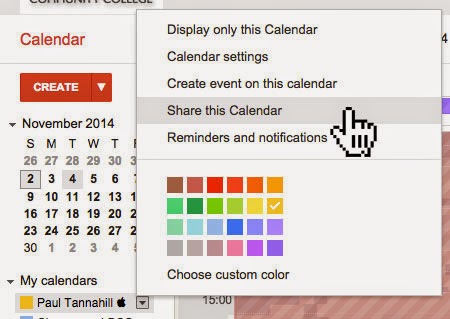
From there, click into the "Enter email address" field and… well, do what it says. Then select among the available permission settings, then the "Add Person" button:

It's as easy as that. The person with whom you shared your calendar will be able to view it in their "Other calendars" section on the left side of their Google Calendar.
Want to "publish" a calendar or calendars? Again, it's easy. Click into the calendar settings:
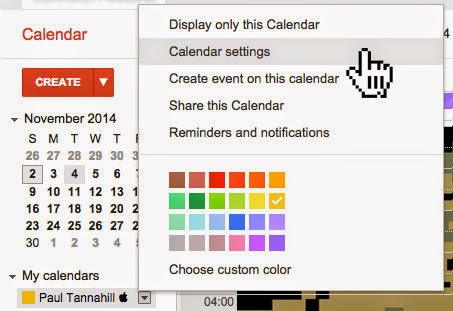
Click on the "Calendar HTML" button in the "Calendar Address" section:

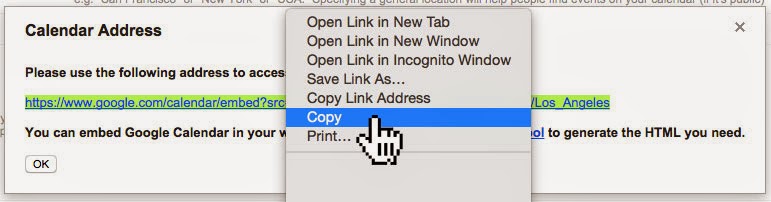
Send that link (test it first!) to anyone you want to be able to view your calendar as a web page. You may want to mention that they can easily subscribe to your calendar by clicking the "+ Google Calendar" button on the bottom right:

Read more here.
Subscribe to:
Posts (Atom)