Friday, October 16, 2015

How To Make a Copy of a Google Doc

When someone shares a Google doc with you with viewing privilege, the menu options along the top of the document are very limited. However, you can make a copy of it and save it to your Google Drive. This will allow you to edit the new document without making any changes to the original. This is a handy setting for you and your students to know when sharing Google docs in your Moodle course.

Step 1: Locate the “Make a copy...” option in the File menu

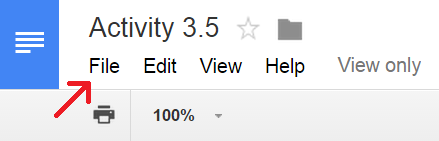
At the top left corner of the document locate and click the File menu to access the pull-down list.


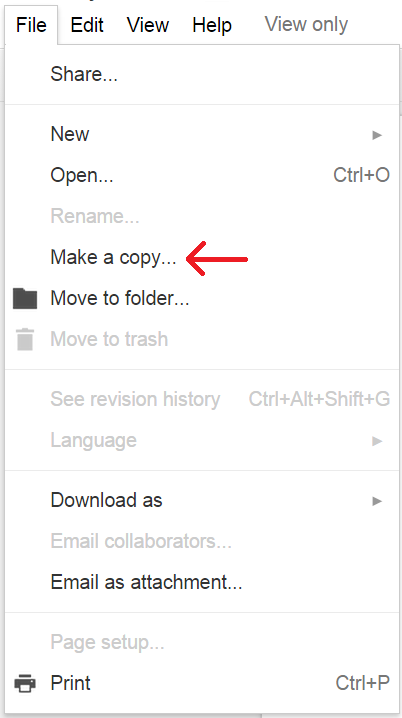
In the pull-down menu, select “Make a copy...”


Step 2: Rename and/or Save to Your Drive

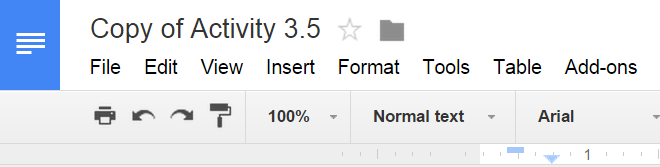
In the pop-up window that appears, you can change the name of the document, if you choose, and then click “OK”. This will open the document in a new browser tab, and all editing and menu options will now appear to you.


Step 3: Move copied Google Doc to your desired location within your Google Drive

The default location of the copied document is in your Drive home. Notice you are now listed as the owner of the file:


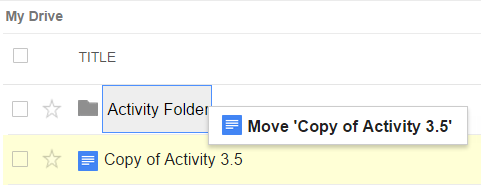
To move this file to another location or folder in your Drive, click and hold the document name and drop it into your desired location.


CREDIT: Miranda Dudzik

Thursday, October 8, 2015

Speedy Meetings in Google Calendar

You may have heard that the College is going to a 50-minute meetings. Did you know you can set your Google Calendar default meeting time to 50 minutes? It's called "Speedy Meetings," and it takes just a few seconds to set it up:

1. Click the little gear icon in the upper right of your Google Calendar:


2. Look for the "Default event duration" setting. Make sure your default event duration is set to 60 minutes.


3. Click the "Speedy meetings" checkbox. Note how the 60-minute dropdown changes to 50-minutes.


4. Click the "Save" button at the bottom, and you're all set. Your new calendar events will now be created with a 50-minute default length!


Monday, September 28, 2015

Appointment Slots in Google Calendar

Wouldn't it be great if you could send out, or publish a link that people could click, and be taken to a view of your calendar, where they could see available appointment slots, and all they had to do to make an appointment with you is click an available slot, and then the event appears on both your and their calendar? Welcome to Appointment Slots!

1. Important: Make sure you are in Week or Day view. Click into any date/time area on your Google Calendar, and a popup will appear. 
Click "Appointment slots" at the top of the popup, and then "Edit details" at the bottom:


2. This is where you will do all (and it's not much) of the heavy lifting:


3. Make sure you put something into the "Title" field that will make sense to both you and your end user. For example, if you are setting up advising appointments with students, rather than "Appointment," consider "Advising Appointment."

4. You are likely using Appointment Slots in a repeating fashion. If so, click the "Does not repeat…" checkbox (I usually need to choose "Custom…":


I set this series of Appointment Slots to repeat weekly on Mondays and Wednesdays until the end of the term:


Also be sure to indicate a meeting duration time, and a meeting location in the "Add location" field.

5. Consider something like this in the "Description" field:

Bring your education plan, degree audit documents from DegreeRunner (if you have access) and/or any documents pertaining to your college course of study.

6. Right-click and copy the long, blue URL:


That's what you can send to your students and/or place in your Moodle course and/or email message, etc.

NOTE: The Appointment Slot URL is the URL for ALL appointment slots for the Google Calendar in which you are creating the appointment slot. If you need/want a unique URL, make a different calendar for that.


7. Click the blue "SAVE" button in the upper left:


Here is what it looks like when I access someone else's Appointment slots link:


Check out all of those appointment slots - I can seem them in context with my other appointments!

When someone clicks to reserve a time slot with you, here is what they will see:


Note that they can customize the details of the event after they save it.

Pretty nifty, huh? I think you've got enough to go on, so go ahead and tinker with your own Appointment Slots. And share your impressions and experience in the comments section below!

Friday, September 18, 2015

Google Docs and Track Changes…

So you say you don't use Google Docs because you must have the "Track Changes" feature of Microsoft Word. Or maybe it's Mail Merge you can't live without. In typical Google fashion, they have taken those concepts to a whole new level (not to mention Revision History, Notifications, Bookmarks, etc.):


Think of the educational and administrative implications of these advancements - it's mind-boggling!

Monday, July 20, 2015

Rethinking Direct Instruction in Online Learning

"The 'I Do, We Do, You Do' structure of Direct Instruction can be utilized to present new material, guide students through the learning process using constructive feedback, and allow space for students to feel part of a larger community of learners as they work in collaboration with peers to demonstrate their understanding. This takes intentionality and effort on behalf of the professor, but this is a worthwhile endeavor as we strive to educate our online learners."

Here is an interesting piece on a topic we discuss around here quite a bit. Enjoy!

Monday, May 18, 2015

Why Open-book Tests Deserve a Place in Your Courses

Of the many obstacles that web-based technologies present, combating academic dishonesty is among the most challenging. For many it is hard to envision a scenario where a student completes an online quiz (or test) without using their smartphone, tablet, or other device to look up the answers, or ‘share’ those answers with other students. Those of us who use online quizzes have experimented with lockdown browsers, randomized questions, and anything else we can find to try to ‘defeat’ the students in their quest to cheat. One potential solution is worth exploring: open-book testing.


Read more here.

Friday, May 15, 2015

Help Us With Our Digital Literacy Assessment!

We are re-rebuilding our Basic Moodle Training (BMT) course, and have decided to require an initial assessment of instructors' digital literacy knowledge, skills, and abilities. This will enable us to help instructors be able to support their students who seek out answers to basic computer and LMS questions and issues.

We have a good start on a question bank for our BMT Digital Literacy Assessment, but need your help to collect up as many relevant questions as possible. You are the ones in the field, so you should know best what should be in such an assessment, correct?

Click here to access the questions we have developed so far, and feel free to add questions of your own, and/or comment (Insert > Comment) on any that you see. You can also make a copy for yourself (File > Make a copy…).

Thanks in advance!

Moodle Gradebook Student View


Wednesday, May 6, 2015

Exporting Moodle Course Grades

Whether you use an LMS or not, you do NOT want to be the instructor who failed to keep records of the courses you deliver. If you use gradable items in Moodle, that task is very easy.

First, click the "Grades" link in your course shell Administration block:


Click the "Export" tab:


Click the "Excel Spreadsheet" link:


Keep everything selected, and click the "Download" button:


Your Excel file containing all of the grades in your course will be downloaded to your computer.


From there, we recommend keeping your course grades spreadsheets in your Google Drive, but that's another blog post…

Again, you REALLY want to make sure you keep records of your students' grades.