Wednesday, March 15, 2017

GMAIL: How to MUTE a conversation

MUTE a conversation when your LBCC Inbox is filling with replies to a conversation you'd rather not see. Once muted, additional replies are instantly archived. Only replies specifically addressed to you will appear. HINT: if a message mysteriously goes missing,​ you may have muted it accidently with the  m  keyboard shortcut!
​​
How to Mute/Unmute a conversation:
Option 1:   open a message, select More, then select Mute (or Unmute).


Option 2:   use *keyboard shortcut  m .
                 (*you must have keyboard shortcuts enabled in Settings, General)
How to locate muted conversations:
Type  is:muted   in the Search box.


Tuesday, March 7, 2017

Moodle Course Total Not Visible

When students tell you they can see grades for individual graded activities, but not a category total or the course total grade, and you have confirmed that the totals are set to be visible on the Categories and Items page, you need to check adjust the following gradebook preferences:

1. Go into the Moodle course Gradebook and click the "Setup" tab. This will take you to the Categories and items page.
2. On the Setup sub-tabs, click Course grade settings. This will take you to the Course grade settings page.
3. Under "User report," change the Hide totals if they contain hidden items drop-down menu to the appropriate setting:

4. Click the "Save changes" button.

Wednesday, March 1, 2017

Moodle Mobile 3.2.1


The Moodle Mobile 3.2.1 release brings with it a number of features and improvements at enhancing users experience and performance.

New features in Moodle 3.2.1 include:
  • Glossary entries: Moodle Mobile users will be able to add glossary entries with attachments, such as images, documents or videos, so that users can view them all in the one spot.
  • Messages & notifications: Users can view their unread messages and notifications count even better as they are now displayed in the app icon (for iOS) and in the app menu item.
  • Web & mobile harmonisation: As part of Moodle’s focus towards a more unified experience between the web and mobile version, the site home displays the same options as via the web – including search courses, browse categories and more. This feature will work with the Moodle Mobile additional features plugin.
  • Configure your Moodle Mobile features straight from your Moodle site administration: Turn on custom menu items and custom language strings, disable features and use the option to enable users to log out completely from the App. Please note this feature requires the latest version of the “Moodle Mobile additional features plugin” and will be included in Moodle Mobile 3.3
Read more here.

Tuesday, February 28, 2017

Why Are Moodle Quiz Grades Hidden for Students?

Question: Why are the attempted quiz grades for students not appearing in their grade book view?

Answer: Often times, this is due to the settings of the quiz itself. There are two locations to check that can force the quiz grades into visible status for students:

The Review Options are incorrect
  1. Navigate to the course in which the quiz appears
  2. Navigate to the quiz and click on the title to enter the quiz
  3. Click on Edit Settings from the Admin Block
  4. Navigate to Review Options and click to expand the menu
  • Under During the Attempt, make sure that the attempt has a check mark next to it.  As a best practice, it is recommended to select all options by placing a check mark next to each option
  • Under Immediately After the Attempt, place a check mark next to each option
  • Under Later, While the Quiz is Still Open, place a check mark next to each option
  • Under After the Quiz is Closed, place a check mark next to each option
       5.  Navigate to Common Module Settings and click to expand the menu
       6.  Using the drop-down menu, choose Show under the Visible section
       7.  Click Save Changes

Setting up a quiz with these settings will ensure that a quiz, once attempted by students, will display the grade for the quiz to students in their grade book view. 

Wednesday, February 8, 2017

The CFAR IA And Your Moodle Course

Has the Center For Accessibility Resources (CFAR) contacted you regarding access to your Moodle course for their CFAR Instructional Assistant? It's quick and easy to enroll them. Here is how to enroll the CFAR IA Moodle account in your Moodle course:

1. Course Administration block > Users > Enrolled users.


2. Click the "Enrol users" button.


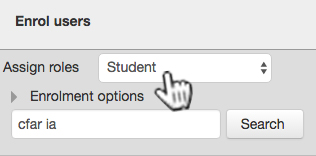
3. Verify that the "Assign roles" dropdown menu is set to "Student, type "cfar ia" into the search field, and click the "Search" button.


4. Click the little "Enrol" button to the right of the "CFAR IA" Moodle account.


5. Click the "Finish enrolling users" button.


At that point, the CFAR Instructional Assistant Moodle account will have student access to your Moodle course for purposes of assisting students with accommodation needs to gain access to your course materials.

Monday, January 23, 2017

Moodle TurnItIn Assignment 2

Are you having trouble updating the TurnItIn Assignments in your Moodle course(s)? It's probably because TurnItIn is slowly decommissioning their "TurnItIn Assignment" in favor of the new & improved "TurnItIn Assignment 2" (real original, huh?). Go ahead and explore the new version.


We will deactivate all instances of the obsolete "TurnItIn Assignment" in LBCC Moodle at 4pm on June 23, 2017.


This means your existing instances of the obsolete TurnItIn Assignment will disappear, and only the "TurnItIn Assignment 2" will be available in the "Add an activity or resource" popup:

To convert your existing obsolete version TurnItIn Assignments to the new version, simply copy and paste from the settings page of the old to the new. When you build instances of the new version, you will also notice additional features. We recommend taking a close look at those settings, making selections that will work for all similar instances of those activities, and then duplicating as many instances as you need for use throughout your Moodle course. Need help?

You know who to call. 😉

Friday, January 13, 2017

Students "Opting Out" Of LBCC Email = No Moodle Auto-Enroll

Scenario:

A student tells you they don't have access to your Moodle course. You have determined:

  • they are registered for your course (and not just on the waitlist)
  • you have set up your Moodle course for automated enrollments
  • all of your other registered students have access to your Moodle course

But not this student. Why not? Chances are, the student in question has "opted out" of LBCC email messages. This status currently prevents student Moodle accounts from being auto-enrolled in Moodle courses (we're working on it!).

In the past, we have recommended that you send those students to the Student Help Desk (in the Library), who will then send them on to Registration to cancel the "opt out" status in Banner, but there is a way to determine that for the student in WebRunner, and send them directly to Registration:

1. Log in to your WebRunner account
2. Click "Faculty and Advisors."


3. Click "Summary Class List."


4. Click "Select Term and submit.


5. Click "Select a CRN" and submit.


6. This will deliver a class roster. Find the student with the Moodle access issue, and if they don't have a little mail icon to the far right of their name, CONGRATULATIONS! You have discovered the issue!


Now all you need to do is instruct the student to visit the Admissions and Registration Department (in Takena Hall) and request to have the "Email Opt Out" status on their Banner account removed. That will trigger auto-enrollment into their course(s) running in Moodle. Congratulations - you are part of the solution!

Friday, January 6, 2017

Moodle Recycle Bin

We are happy to report that our Moodle system now has a recycle bin! If you have ever deleted an Activity or Resource from your Moodle shell, and later wished you could get it back, now you will have up to 30 days to restore it into your course.


You will see the link to the recycle bin in the Administration block in your Moodle course shell:


It's easy to restore an item:


Note that when you restore an Activity or Resource, it will reappear at the bottom of the content section where it previously resided, not its original position.

Let us know how you like this new feature!

Thursday, December 22, 2016

Choosing A Course Format In Moodle

"The vast majority of Moodle courses apply the weekly format, probably because it is the most similar to a physical classroom experience. This is understandable, and preferable as long as an LMS technology is brought to support modern pedagogical efforts."

Read more here.

Monday, December 5, 2016

Images and Formatted Text in Gmail

GREAT NEWS! You can now paste content into Gmail and all of the formatting and images will remain intact.

Read more here.

Thanks for the heads-up, Chad Bordes!

Friday, December 2, 2016

Nailing It With PowerPoint

Yes, a lot of us have a true love/hate relationship with Microsoft PowerPoint, but we also have thousands of slideshows (PowerPoint, Google Slides, etc.) deployed to our students. If you're going to use PowerPoint, you might as well do it right. And with that in mind, I'd like to share a great blog post on that very topic. Enjoy!

Managing Moodle Blocks