Thursday, December 14, 2017
9 Google Calendar Features You Should Be Using
Right when I was just about to start thinking there are probably some Google Calendar features I'm not taking advantage of, I stumbled across this. Enjoy!


Friday, December 1, 2017
Default Text in Gmail
Want to make the body text in your Gmail messages stand out from the crowd, and/or make it more readable than the regular system default ol' font and size most everyone else uses? Get yourself a new default text setting! Click the little gear button in the upper right in your Gmail, and then click on Settings:

From there, look for the "Default text style" area. Here is how I have my Gmail default text set:
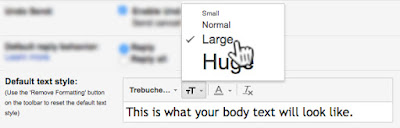
From there, look for the "Default text style" area. Here is how I have my Gmail default text set:

Thursday, November 30, 2017
Moodle Course Dashboard - Needs Grading
Instructor question:
I'm still getting used to using the grader in Moodle (I used the Joule Grader in the past). The Joule grader "told me" when someone resubmitted an assignment. I assumed that the one we have now would do the same.
I knew that this student resubmitted because she told me she did. But I can't see anything in the assignment submission list that tells me there has been an updated submission. (I'm concerned because I know that other students have resubmitted as well and now I don't know how I can track them).
Can you take a look and let me know if there is a way to figure this out?
Click the settings gear in the upper right > Open Reports:


Then select the "Needs Grading" report from the "Dashboard" dropdown menu:

See the informational notice Moodle provides:
The Needs Grading report shows you what is ready for grading. It lists each student and their activities that need grading. Select Grade now to grade the activity.
Use the filters to expand or narrow your view. You can send messages to students you see in the report. Select the student and the option to send them a message from the Action menu.
Negative Grades In Moodle
We had an interesting question from an instructor:
What I want to be able to accomplish is to be able to input negative values to a grade.
In my class attendance is required. If students have perfect attendance they receive 10 points extra credit toward their final grade; if students miss 1 or 2 classes, their final grade does not change; and any subsequent absence, they are penalized by 10 points to their final grade.
What I want to do on Moodle is to add an assignment and call it attendance where the value of the assignment is 0. I would add 10 points if students earned perfect attendance, and I want to subtract points from the final grade when they've missed more than 2 classes. However, Moodle will not allow me to input a negative value. How do I subtract points from the final grade without taking it out of previous assignments? Is there a way for you to allow me to input a negative value?
Eric Bryant delivered a terrific solution:
As this is a somewhat unique way of grading, my suggestion would be to create a manual gradebook item that has a maximum value of '0' and a minimum value of '-10'.

You will also need to create an additional manual gradebook item with a minimum value of '0' and a maximum value of '10' and mark this one as Extra Credit.

Setting it up this way will allow you to assign every student on the first gradebook item a zero (100%), or something less up to -10 points (0%). The second gradebook item will be for those students earning the extra credit. As the item is marked as extra credit, only those earning 10 points will be awarded and it will not impact any other student grades.
Remember these two manual gradebook items should not be within a category if you use categories.
Wednesday, November 29, 2017
Tuesday, November 21, 2017
Friday, November 17, 2017
Moodle Language Pack Updates
You may have noticed various instances of what appear to be misspelled words (enrol, enrolment, etc.) in our Moodle system, but those are actually Australian spellings. We have customized a number of them to US spelling, but if you would like to temporarily switch over to the "English - United States" language pack, it's simple. Log in to LBCC Moodle and look at the language selector at the top of the page:

It's that easy!
If you like the English - United States language pack, you can make the switch permanent:
1. Click the little disclosure triangle next to your name and picture in the upper right of any LBCC Moodle page, and click "Preferences."

2. Click the "Preferred language" link.

3. Select "English - United States (en_us). And yes, that is "English Pirate" you also see there. Good luck with that.


It's that easy!
If you like the English - United States language pack, you can make the switch permanent:
1. Click the little disclosure triangle next to your name and picture in the upper right of any LBCC Moodle page, and click "Preferences."

2. Click the "Preferred language" link.
3. Select "English - United States (en_us). And yes, that is "English Pirate" you also see there. Good luck with that.
4. Click the "Save changes" button.
Wednesday, November 15, 2017
How to Digitally Sign a Google Doc
Have you ever needed to sign a Google Doc to submit for some type of action requiring a signature? Here is a method I wish I had thought of!
Wednesday, October 11, 2017
Moodle Course Accessibility MOOC
You have been hearing and reading a lot about accessibility, and you may be wondering what that means for your Moodle course(s). Our Moodle hosting company is delivering "The Accessibility MOOC." It will start October 16, and it's FREE. Visit the MOOC site here to sign up and get started! Your participation will help LBCC meet the January 2018 ADA compliance deadline!
Friday, September 29, 2017
Thursday, September 21, 2017
Google Docs Email Collaborators
You have probably attached a Google Doc to a Gmail message via the weird little "Drive" icon button at the bottom left of the email interface:

Did you know you can also easily email any or all of the people who have access to a Google Doc, from within the Doc itself? Check out "Email collaborators" in the "File" menu:

This is one of those "anything you can do to make it easy for people to work together" features.

Did you know you can also easily email any or all of the people who have access to a Google Doc, from within the Doc itself? Check out "Email collaborators" in the "File" menu:

This is one of those "anything you can do to make it easy for people to work together" features.
Tuesday, September 12, 2017
Moodle Zoom Activity
Zoom is Linn-Benton Community College's official webinar/online meeting tool for academic and administrative uses. Its full-featured, yet simple interface works great for video/audio or audio-only live and recorded meetings and screenshare sessions.
We have recently implemented a new Activity type in our Moodle system to make it easy for you and your students to connect via Zoom. All you have to do is turn Editing on in your Moodle course and click the "Add an activity or resource" link in the section where you want to add the Activity:
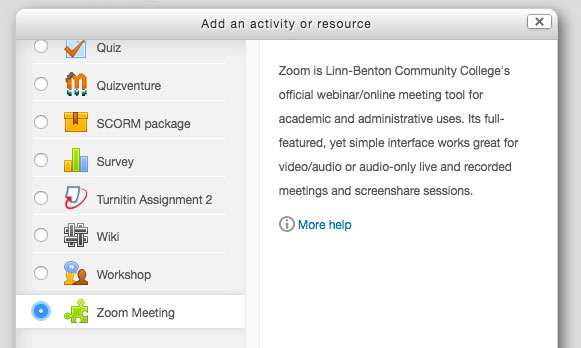
For first-time users, the Zoom Activity is configured to create new Zoom accounts on-the-fly, with usernames based on the Moodle account email address.
Zoom is very simple and easy to learn via our original "All About Zoom" post, as well as Zoom's Training Resources page.
We are interested in hearing about your impressions and experiences with Zoom, so please feel free to comment below!
Subscribe to:
Posts (Atom)