Are you using Ally, our LMS accessibility tool, or interested in using it in your Moodle course? If so, you may want to bookmark this page, as it is kept up-to-date on improvements in each version update. You can also follow the page by subscribing with your email address here.
And speaking of subscribing, you are subscribed to this blog, too, right?
Monday, January 28, 2019


Friday, January 4, 2019
TurnItIn Training Recorded Session
If you weren't able to make the recent TurnItIn training session, no worries - it was recorded. You can view the recording here.
Here are the time stamps for the main parts we covered:
Also, here are some additional resources you may find useful:
Interpreting the Similarity Report
Video: The Similarity Score Explained
The Plagiarism Spectrum
Bubble Comments & QuickMarks
Grammar & Spelling Check
Here are the time stamps for the main parts we covered:
- 0:00- Turnitin Feedback Studio Overview
- 14:30- Moodle Workflow for Creating Turnitin Assignments
- 26:35- Accessing Student Submissions and Submitting on Students' Behalf
- 30:50- PeerMark Tool
Also, here are some additional resources you may find useful:
Interpreting the Similarity Report
Video: The Similarity Score Explained
The Plagiarism Spectrum
Bubble Comments & QuickMarks
Grammar & Spelling Check
Friday, November 30, 2018
How to Duplicate Activities and Resources in Your Moodle Course
You have probably built a number of Resources and Activities in your Moodle course(s), but did you know you can create duplicates of them? This is a great way to make sure everything functions consistently for you and your students from week-to-week.
Thursday, September 20, 2018
Moodle Dashboard "Courses" Tab
We have been hearing that some students and instructors are having a little trouble locating their courses on their Moodle Dashboard. If you can't find your course(s) in the default view of your Moodle Dashboard, try clicking the "Future" button. This will show any course in which you are enrolled that is set to start in the future:


Friday, August 31, 2018
Reconsidering the Moodle Book Resource
"The Book resource in Moodle is a series of connected Moodle Pages. It is suitable for replicating a text book or a manual. In addition to text, video, audio, images; web sites, interactive activities and links can be included on Book pages. Possibly, some of us discount the Book module as a place for incorporating interactivity as it is listed in the Moodle Resources section of the Add an activity or resource chooser."
Read more here.
Thursday, August 16, 2018
PDF Versions in Google Drive
A colleague came to us this morning with an issue regarding Google Drive. She had a PDF in her Google Drive that she had created from a hard copy scan, and when she uploaded another PDF with the same name, she noticed Google Drive had replace the original file with the new file. I had a bit of familiarity with how to update a PDF in Google Drive to a new version manually (more on that later), but hadn't seen or noticed it happening automatically.
When I tested it out for myself, I saw that Google Drive had noticed the second PDF had the same exact name as the original, and updated the original one for me. It also provided this handy popup to inform me of the kind deed:

Of course, a lot of people just click right through those and continue working, but I figured if it's happening to one person, it's happening to others, too, so here is the blog post to cover you.
The solution we landed on comes from right-clicking the PDF in Google Drive, and then clicking "Manage versions…"


When I tested it out for myself, I saw that Google Drive had noticed the second PDF had the same exact name as the original, and updated the original one for me. It also provided this handy popup to inform me of the kind deed:

Of course, a lot of people just click right through those and continue working, but I figured if it's happening to one person, it's happening to others, too, so here is the blog post to cover you.
The solution we landed on comes from right-clicking the PDF in Google Drive, and then clicking "Manage versions…"

That will show a popup from which you can see previous versions:

If you click the "More actions" (three vertical dots) to the right of one of the file versions, you will see… well, more actions you can take:

Now for the ADDED VALUE feature of this post: look at the "UPLOAD NEW VERSION" button in the "Manage versions" popup above. You can manually update a PDF to a new version! That may not seem so exciting until and unless you have a link to a PDF in Google Docs appearing on a website(s), and need to update it. No need to update the URL - just upload a new version!
Tuesday, August 7, 2018
Top 10 Things Organizations Get Wrong When Using Moodle
Thursday, June 21, 2018
MoodleMorphosis Phase 1 Complete
Yesterday the Moodle team completed Phase 1 of our multi-part updates to Moodle (Moodlemorphosis). This summer we will pilot this first set of changes and make any needed corrections before the fall term. The recent changes mostly affect Moodle navigation and appearance. Please provide feedback! We'll continue developing improved support resources over the summer. In the fall, we will turn our focus to enrollment and course management processes.
There are a few things to know about Phase 1:
Username: We updated Moodle account usernames for all students, and for employees who don't have student-formatted accounts to our "LB ID" number. For employees with only one Moodle account, your username should now be your LB ID. For almost everyone at LBCC (students and employees), the LB ID is the same as your "X" number. You can check to see what your LB ID is in WebRunner. We did not change Moodle passwords.
User tours: You will see pop-up user tours that are meant to introduce you to changes and new elements of Moodle. If you close a tour early or want to return to it, you will find an option to reset the tour at the bottom of the Moodle page. Please spend some time going through the tours!
Faculty Resources: We also hope that you'll take a minute to review the redesigned Faculty Resources page. You are able to access these resources without logging in from the elearning.linnbenton.edu page and once logged in, Faculty Resources are always one click away through the Nav Drawer (in the left column).
Support: The best way for faculty to get Moodle support over the summer is to use the email lms-admins-lb@linnbenton.edu. Messages sent to that address will go to me, Eric, and Paul. Students should continue to use the Student Help Desk.
Training: We'll offer training sessions to review changes during non-instructional days this fall and will continue Moodle Monday and Tuesday drop-in sessions. You're welcome to schedule one-on-one training with Paul or Eric at any time.
There are a few things to know about Phase 1:
Username: We updated Moodle account usernames for all students, and for employees who don't have student-formatted accounts to our "LB ID" number. For employees with only one Moodle account, your username should now be your LB ID. For almost everyone at LBCC (students and employees), the LB ID is the same as your "X" number. You can check to see what your LB ID is in WebRunner. We did not change Moodle passwords.
User tours: You will see pop-up user tours that are meant to introduce you to changes and new elements of Moodle. If you close a tour early or want to return to it, you will find an option to reset the tour at the bottom of the Moodle page. Please spend some time going through the tours!
Faculty Resources: We also hope that you'll take a minute to review the redesigned Faculty Resources page. You are able to access these resources without logging in from the elearning.linnbenton.edu page and once logged in, Faculty Resources are always one click away through the Nav Drawer (in the left column).
Support: The best way for faculty to get Moodle support over the summer is to use the email lms-admins-lb@linnbenton.edu. Messages sent to that address will go to me, Eric, and Paul. Students should continue to use the Student Help Desk.
Training: We'll offer training sessions to review changes during non-instructional days this fall and will continue Moodle Monday and Tuesday drop-in sessions. You're welcome to schedule one-on-one training with Paul or Eric at any time.
Wednesday, May 23, 2018
Including & Excluding Empty Grades in Moodle
There are primarily two methods of displaying/calculating grades.
This is the method we usually recommend. It gives your students a consistent running total for their grades based on the number of points they have attempted at a specific point in time. It works well for instructors who keep their grades updated in Moodle throughout the term, and it tends to be preferred by most students. For this to properly calculate, the instructor must fill in a zero point (0) for every assignment that was not, or will not be give credit in order to count against the student. This is why percentages can appear artificially inflated if each grade item does not have a numerical value and shows a dash (-).
This method works well if an instructor doesn't wish to enter in a zero grade as Moodle treats each empty grade as a 0; however, students do not receive an accurate grade percentage displayed in Moodle until the end of the term. As you can imagine, this can cause problems (and sometimes panic!) as students do not have an accurate idea of where they stand in the course.
Both methods must be fully understood by the instructor, and grades should be regularly updated as doing so will best benefit the student.
(1) Exclude empty grades
This is the method we usually recommend. It gives your students a consistent running total for their grades based on the number of points they have attempted at a specific point in time. It works well for instructors who keep their grades updated in Moodle throughout the term, and it tends to be preferred by most students. For this to properly calculate, the instructor must fill in a zero point (0) for every assignment that was not, or will not be give credit in order to count against the student. This is why percentages can appear artificially inflated if each grade item does not have a numerical value and shows a dash (-).
(2) Include empty grades
This method works well if an instructor doesn't wish to enter in a zero grade as Moodle treats each empty grade as a 0; however, students do not receive an accurate grade percentage displayed in Moodle until the end of the term. As you can imagine, this can cause problems (and sometimes panic!) as students do not have an accurate idea of where they stand in the course.
Both methods must be fully understood by the instructor, and grades should be regularly updated as doing so will best benefit the student.
Monday, May 7, 2018
How to Delete a Student's Moodle Assignment Submission
We received a request from an instructor recently:
"I need to delete a student's submission to a Moodle assignment (she accidentally uploaded the wrong assignment)."
Our reply:
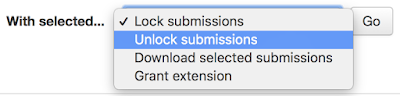
Moodle handles that a little differently than we might prefer. Depending on whether you have the Assignment settings configured, your student may or may not be able to simply edit or make a second submission with the correct file. Either way, you should be able to:
That should enable to student to resubmit to the Moodle Assignment with the proper file.
Yes, it would be more straightforward if there was a "delete submission" option in that dropdown menu, but I think Moodle wants to keep the submitted file on a "better to have and not need than need and not have" theme.
"I need to delete a student's submission to a Moodle assignment (she accidentally uploaded the wrong assignment)."
Our reply:
Moodle handles that a little differently than we might prefer. Depending on whether you have the Assignment settings configured, your student may or may not be able to simply edit or make a second submission with the correct file. Either way, you should be able to:
- click into the Assignment
- click the "View all submissions" button
- select the checkbox to the left of the student's name
- click the "With selected…" dropdown, "unlock submissions" and the "Go" button:

That should enable to student to resubmit to the Moodle Assignment with the proper file.
Yes, it would be more straightforward if there was a "delete submission" option in that dropdown menu, but I think Moodle wants to keep the submitted file on a "better to have and not need than need and not have" theme.
Tuesday, May 1, 2018
Using Outcomes In Your Moodle Course
As an instructor at LBCC, you have been told that "at the end of each term, you will be asked to report how many students met each outcome for your course…"
If you are looking for a way to effectively and efficiently assess and report learning outcomes in your teaching, you are in luck, because Moodle Outcomes is one of the "if you only use Moodle for this one thing, it's WORTH IT" features.


If you are looking for a way to effectively and efficiently assess and report learning outcomes in your teaching, you are in luck, because Moodle Outcomes is one of the "if you only use Moodle for this one thing, it's WORTH IT" features.
How do you get started using the Outcomes functionality in Moodle?
Step #1- Install Your Outcome Set in Our Moodle System: Share a Google Doc or Sheet with me that contains all of your course(s) outcomes. They can be arranged in a bulleted list, or in separate cells on a sheet. The specific layout really doesn't matter, as we have to install them copy & paste style. It's one of those tasks that is more tedious than we prefer, but still definitely worth it!
Step #2 - Attach Your Outcome Set to Your Moodle Course: Once we have your course outcomes installed on our Moodle system, select the Outcome set for your course. In your course settings area:

Click on "Select outcome sets" in the "Outcomes" area:

Select your course outcome set in the "choose an outcome set" dropdown, and click the "Ok" button:

Click the "save and display" button at the bottom of the course settings page:
See the above steps in action:
Step #3 - Attach Outcomes to Activities & Resources: You will be able to indicate individual outcome(s) for each Resource and/or Activity in your Moodle course. Just go to the settings area for the Resource or Activity in question:

That was easy enough, but what can you do with that? How about a report on the percentage of students who have successfully completed your course outcomes? Easy:
Step #1 - Navigate to Your Course Outcomes Page:

Step #2 - Access the "Activity and Performance" Report:


That was easy enough, but what can you do with that? How about a report on the percentage of students who have successfully completed your course outcomes? Easy:
Step #1 - Navigate to Your Course Outcomes Page:

Step #2 - Access the "Activity and Performance" Report:
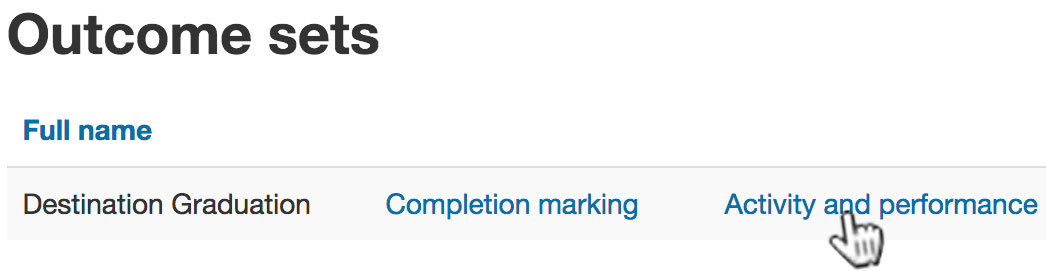
Step #3 - Download Your Report:

You've got enough to go on now, don't you? Of course, we are available for any questions or ideas - go ahead and comment below!
Wednesday, April 18, 2018
How to Put an "Add to Google Calendar" Link in an Email Message
Have you ever thought it would be nice to include an "Add to Google Calendar" link in the body of an email message you are sending out to announce an event? Here is one way to make it easy for your email recipients to add a copy of YOUR event to THEIR Google Calendar. This works for one-time events, as well as recurring events!
Se it in action here.
Subscribe to:
Posts (Atom)