If you take a moment to read the confirmation pages (seen after you click the "Submit" button) for the Moodle CRN form, and the Multiple Enrollment CRN form, you will see that you can verify your submission, so you don't have to wonder whether the system received your input. For your convenience, here are the direct links for the verification pages:
CRN Form Verification
Multiple Enrollment CRN Form Verification
Friday, January 3, 2014


Moodle 2.5 Course Availability
We upgraded to Moodle version 2.5 over the holiday break, and one of the first changes we noticed happens to be one of the things you will need to know at the beginning of the term: how to make your course(s) available to students.
It's still in the "Settings" area, but now it's closer to the top:


It's still in the "Settings" area, but now it's closer to the top:

If you click the " " you will see some helpful info:
" you will see some helpful info:
Sunday, December 15, 2013
Update to the Missing Google Menu Bar Issue
Here is an update to our previous "What!? Google Changed the Interface Again!!!?" post!
Apparently, not every "interface improvement" is a true improvement for everyone. To prove the point, a tech-savvy Google user has come up with a browser extension to restore the useful Google menu bar to its rightful location (and helping us return to one-click navigation!). Behold the Proper Menubar!
Thanks to Perry Carmichael for passing this along.
Apparently, not every "interface improvement" is a true improvement for everyone. To prove the point, a tech-savvy Google user has come up with a browser extension to restore the useful Google menu bar to its rightful location (and helping us return to one-click navigation!). Behold the Proper Menubar!
Thanks to Perry Carmichael for passing this along.
Monday, November 4, 2013
What!? Google Changed the Interface Again!!!?
Are you missing the links along the top of your browser window when you're in Gmail to get to your Google Calendar, Drive, etc.? Well, Google went and made things… better for us again. Here is where you can find those links now (in the upper right):

PS: If you thought you might have been going crazy before reading this post, please note that just because you discovered that this issue was related to Google changing the interface does not mean you aren't crazy.

PS: If you thought you might have been going crazy before reading this post, please note that just because you discovered that this issue was related to Google changing the interface does not mean you aren't crazy.
Tuesday, October 29, 2013
User Overrides in Moodle Quizzes
Here is a question we get asked fairly frequently: "CFAR (Center For Accessibility Resources) has authorized a student to receive more time (or other accommodation) on the quizzes in my Moodle course. How do I facilitate that?"
Here's how:
In your Moodle course, click into a quiz for which you need to make student accommodation.
1. Click the settings gear in the upper right
2. Click the "Add user override" button
3. Search for your student's name
4. Select among the available override settings
5. Click the "Save" or "Save and enter another override" button:

Here's how:
In your Moodle course, click into a quiz for which you need to make student accommodation.
1. Click the settings gear in the upper right
2. Click the "Add user override" button
3. Search for your student's name
4. Select among the available override settings
5. Click the "Save" or "Save and enter another override" button:

Do this for each quiz in your Moodle course, and you will be all set!
Monday, October 21, 2013
"Switch Role To…" Explained
When you switch role to student, you get to view, but not interact with the Moodle system as a student:

The system knows you are actually logged into the course in an account that has Instructor role, and since that role cannot earn a grade in that course, you're in a "you can look, but you can't touch" situation. If you want to truly view and interact with a course like a student, enroll and login to one of the fake/dummy student accounts.
1. Click on the settings gear in the upper right, and then click "More…" at the bottom of the dropdown menu:

2. Click the "Users" tab, and then the "Enrolled users" link:

2. Click the "Users" tab, and then the "Enrolled users" link:

3. Click on the "Enroll users" button on the right side:

4. A popup will appear. Run a search for "student" in the search field. You will see our five fake students (they are all brothers). Select one of them and click the "Enroll users" button at the bottom right of the popup:
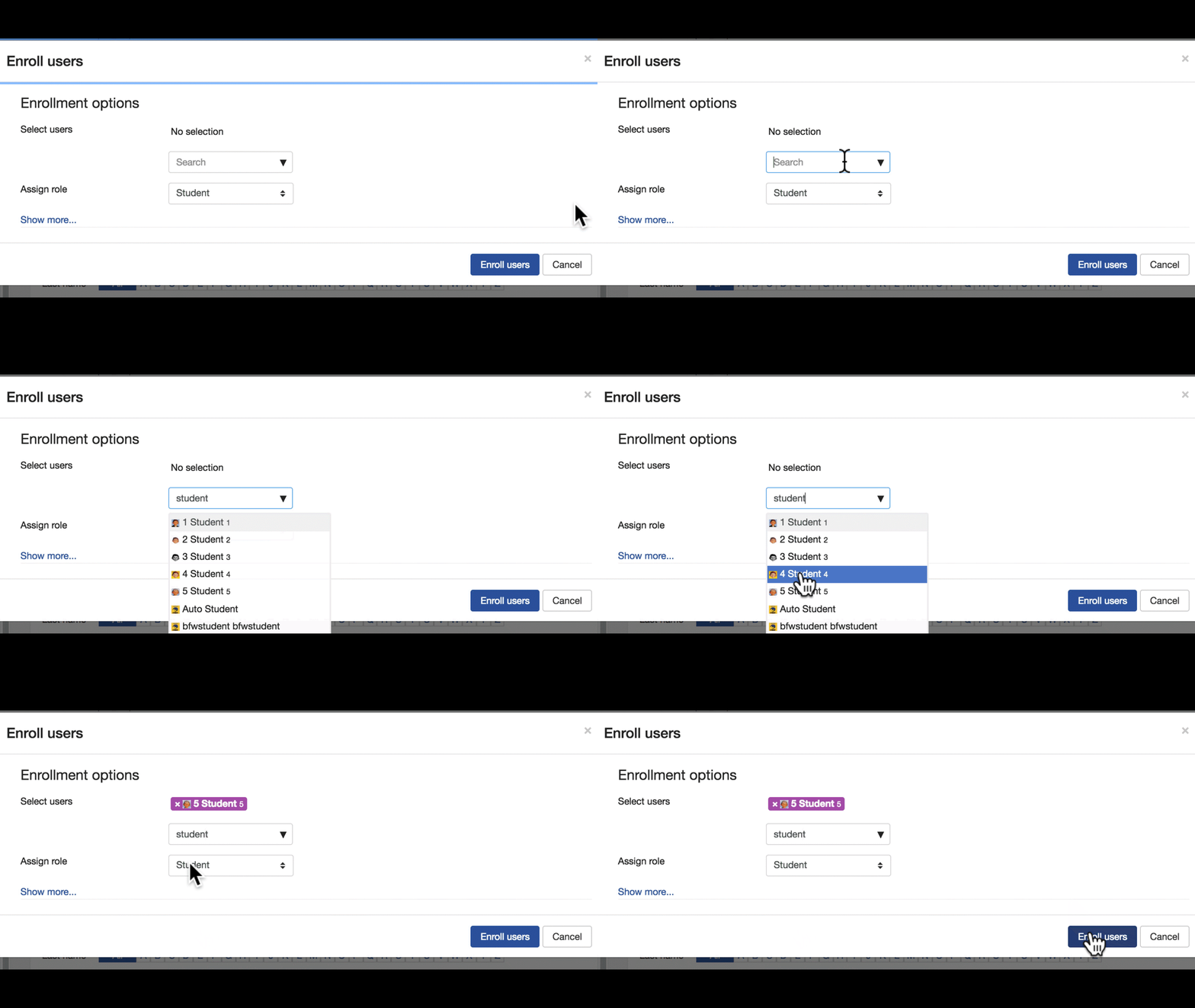
At this point, you can access the course via an incognito (or a "private" window in Firefox) as that fake student. The username and password is the numerical digit associated with the name.
Now you can view and interact with your course as a student!
Where Is the Moodle Login Link!?
With the launch of the new LBCC website, the familiar link on the homepage to login to Moodle is now on a page behind the "Current Students" menu header (yes, it's a link):

Click there, and you will see "Login to Moodle," as well as links to RoadRunner and WebRunner.
Of course, you can always bookmark those sites for easier access.
Tuesday, October 15, 2013
Check Your Google Drive Upload Settings
If you haven't used Google Drive (the web interface, not the software you install on your computer), and you're just about to (come on, everybody's doing it!), or you haven't discovered this setting yet, here is a quick way to avoid hassle down the road:
Step 1: Trust me on this one, ok?
Step 2: In Google Drive, click the little gear in the upper right, and then click on "Settings"

Step 3: In the popup dialog, click the "Convert uploaded files to Google Docs editor format" checkbox, and then the blue "Done" button:

Friday, October 11, 2013
Moodle Written Assignment Submissions Via Google Docs
Here is how to share an assignment worksheet in a way that Students will be able to view, make a copy for themselves to edit, and submit it for a written assignment without printing a single page - your students will appreciate that! Feel free to offer suggestions for improving this tutorial by commenting below.
Phase 1 - Check Your Google Drive Upload Settings
Step 1: Trust me on this one, ok?
Step 2: In Google Drive, click the Settings gear in the upper right and adjust your Upload settings to "Confirm setting before each upload."

It may not seem obvious at first, but trust me - there will be times when you want to convert files, and times you don't. This setting has saved me from… well, just trust me on this.
Step 2: In Google Drive, click the Settings gear in the upper right and adjust your Upload settings to "Confirm setting before each upload."

It may not seem obvious at first, but trust me - there will be times when you want to convert files, and times you don't. This setting has saved me from… well, just trust me on this.
Phase 2 - Prepping Your Google Doc
Step 1: Upload your worksheet to your Google Drive (or copy and paste it into a new Google Doc).
Step 2: Click the blue “Share” button in the upper right.

Step 3: Click the “Change…” link to the right of “Private - Only the people listed below can access”

Step 4: Decide on an appropriate sharing setting (pay attention to the help text below each setting), and click “Save” at the bottom left.

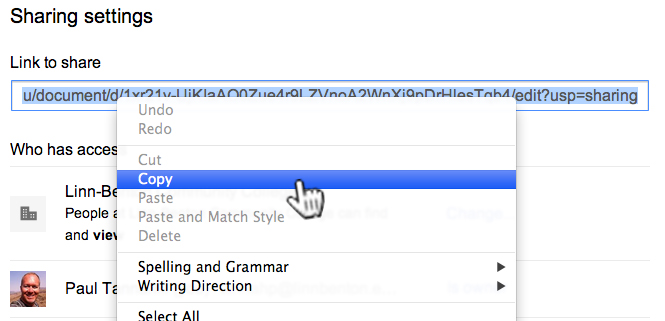
Step 5: Copy the link in the “Link to share” field. This is the link you will paste in the Moodle Assignment “Description” field for your Students to click to access the worksheet.
Phase 3 - Building Your Moodle Assignment
Instructor: copy & paste the below instructions into your Moodle Assignment “Description” field. Be sure to add the hyperlink in Step 2 below to the published version of your Google Doc starter worksheet (if any).
Step 1: Log into your LBCC RoadRunner acount.
Step 2: Click here to view the worksheet for this assignment. This will open in a new browser tab in Google Docs.
Step 3: File menu > Make a copy…
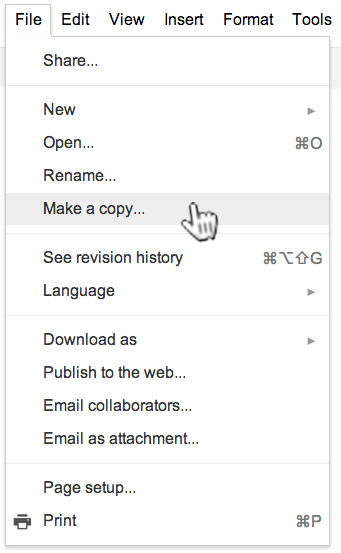
This will save a copy of the Google Doc that you own, and can edit.
Step 4: (Instructor: Depending on your preferences, and your Assignment “Online text” and “File submissions” settings, choose one of the following suggested instructions, and edit to your liking);
Edit the Google Doc, using bold and red font for clarity when I grade your work. Once you are finished, submit in the Moodle Assignment by copying and pasting the entire doc contents into the submission box.
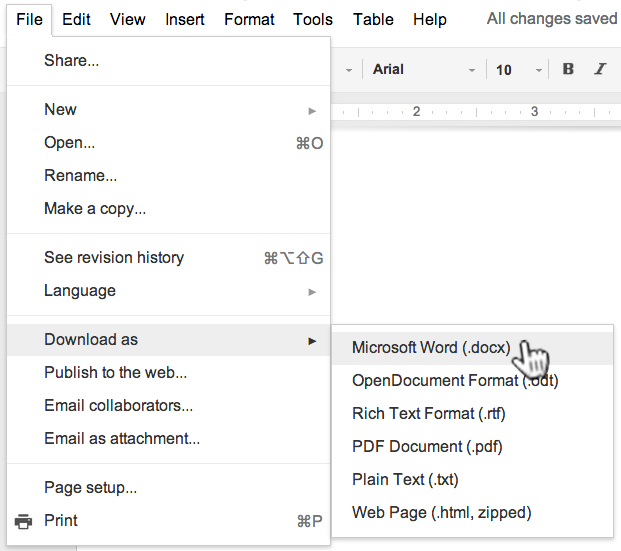
Download the Google Doc as a Word file (File > Download as > Microsoft Word (docx):
Depending on how your instructor has set the assignment submission settings, paste the text from the Word doc via the “Online text” area:
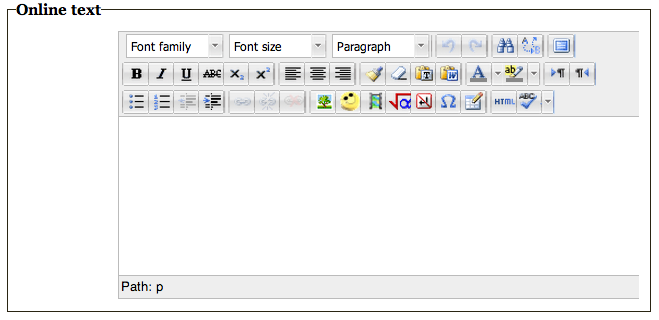
and/or upload the File here:
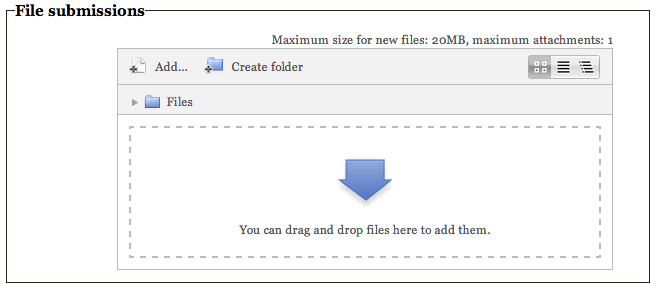
Be sure to click the “Saved changes” button at the bottom:

IMPORTANT:
The above two submission options require the proper Submission settings in your Assignment “Settings” area:
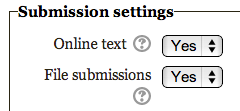
You can test the assignment by enrolling and logging into one of the test student accounts in your course.
Tuesday, October 8, 2013
LBCC "X" Number Vs. OSU ID Number - UGH
I just received what must be the zillionth message from an Instructor or Student expressing frustration about the student not being able to access their Moodle course shell. This issue usually involves an Instructor not completing the quick & simple Auto-Enroll processes, preventing their students from easy access to their Moodle courses. The second-most common reason is… well, I'll let you read my reply to the Instructor:
Is your student not getting access to your Moodle shell at all, or just not with the Moodle account associated with her LBCC "X" number? Since she is dual-enrolled at OSU, Banner has created a second account for her based on her OSU ID number, and only the corresponding Moodle account is auto-enrolled in your Moodle course. When your student logs in to LBCC Moodle with her OSU ID number as her username, and her MMDDYY birthday as her password, she will have access to your course.
This issue is especially tricky to solve when a student has already completed work in the course under their "X" number account, but needs to continue with their OSU ID account. Merging two active user accounts in any system can get messy fast.
Before you say it, believe me, we know and understand what a hassle the two ID number thing is for students (not just in Moodle!), and are working hard to put a resolution in place. Surely it couldn't be a decision someone made many years ago, and is only still being done this way because it has always been done this way…
Before you say it, believe me, we know and understand what a hassle the two ID number thing is for students (not just in Moodle!), and are working hard to put a resolution in place. Surely it couldn't be a decision someone made many years ago, and is only still being done this way because it has always been done this way…
Thursday, October 3, 2013
I Don't Have Time For Van Training
I just received an email announcing training for college employees who want/need to drive a college-owned van:
According to the college driving guidelines, drivers must be at least 18 years old, or if driving a college owned or rented vehicle, VAN drivers must be 19 years old and have a minimum of 3 years' driving experience as a prerequisite. Completion of both the LBCC-approved online and hands-on Van Driver Training
You get bonus points if you read all that.
Here is the equivalent of what I often hear from Instructors regarding Moodle Training:
I don't have time for van training. I just got notified that I'm scheduled to deliver a heavy load of equipment across town early tomorrow morning, so can I just get a set of keys and teach myself how to drive? I've never driven a van before, but I have driven cars, so I should be good to go by just winging it.

According to the college driving guidelines, drivers must be at least 18 years old, or if driving a college owned or rented vehicle, VAN drivers must be 19 years old and have a minimum of 3 years' driving experience as a prerequisite. Completion of both the LBCC-approved online and hands-on Van Driver Training
You get bonus points if you read all that.
Here is the equivalent of what I often hear from Instructors regarding Moodle Training:
I don't have time for van training. I just got notified that I'm scheduled to deliver a heavy load of equipment across town early tomorrow morning, so can I just get a set of keys and teach myself how to drive? I've never driven a van before, but I have driven cars, so I should be good to go by just winging it.

Tuesday, October 1, 2013
Here Is Why eLearning Content Should NOT be Native Files
Check out the text message support conversation I had recently:
Student: I think my Office Word 2010 was expired or my computer didn't operate for 2013 which my instructor uses. I can't afford to buy Microsoft Office - please help!
Me: Sure! Please reply with your name, Student ID number, and the Moodle course in question.
Student: My only problem is I couldn't open syllabus and schedule. My concern is not able to look up for a slide show and upcoming homeworks.
Me: I will update the content in your course with web pages instead of native Word and PowerPoint files so you can view them in your browser. You will be all set in a few minutes.
Student: I now use the web page versions of the items you fixed and all are working. I am very thankful for the work you have done for me.
Are there more reasons not to deploy online course content as native files? Sure, how about:
Accessibility
A screenreader can read a web page better than it can navigate to a link, download a file, locate that file, open that file, and read it aloud.
Conformity to Modern Web Navigation Standards
When you click a link on the Web, you expect to be taken to another Web page, not a file to download… and locate, and open…
File Management Issues
You're not taking an online course to learn computer file management. Unless you are. But you're probably not.
File Compatibility Issues
Remember the Microsoft Office compatibility issue? Need we say more?
With today's technology, it's actually easier, and less work to publish eLearning content as web pages rather than native files. If you don't know how, find someone who can help you learn (your LMS Administrator and/or Instructional Designer, for example). You will be doing yourself and your students a big favor.
Student: I think my Office Word 2010 was expired or my computer didn't operate for 2013 which my instructor uses. I can't afford to buy Microsoft Office - please help!
Me: Sure! Please reply with your name, Student ID number, and the Moodle course in question.
Student: My only problem is I couldn't open syllabus and schedule. My concern is not able to look up for a slide show and upcoming homeworks.
Me: I will update the content in your course with web pages instead of native Word and PowerPoint files so you can view them in your browser. You will be all set in a few minutes.
Student: I now use the web page versions of the items you fixed and all are working. I am very thankful for the work you have done for me.
Are there more reasons not to deploy online course content as native files? Sure, how about:
Accessibility
A screenreader can read a web page better than it can navigate to a link, download a file, locate that file, open that file, and read it aloud.
Conformity to Modern Web Navigation Standards
When you click a link on the Web, you expect to be taken to another Web page, not a file to download… and locate, and open…
File Management Issues
You're not taking an online course to learn computer file management. Unless you are. But you're probably not.
File Compatibility Issues
Remember the Microsoft Office compatibility issue? Need we say more?
With today's technology, it's actually easier, and less work to publish eLearning content as web pages rather than native files. If you don't know how, find someone who can help you learn (your LMS Administrator and/or Instructional Designer, for example). You will be doing yourself and your students a big favor.
Monday, September 30, 2013
"Courses Available To Students" Block - It's for Students!
Lots of instructors have been asking about the "Courses Available To Students" Block, expressing confusion on how their Moodle course shells sometimes disappear from there.


The "Courses Available to Studenrs" block only shows courses that are set as available to students (Settings > Edit settings):

I recommend thinking of this block as a student navigation aid. You can always find courses in which you have Instructor role in the "Navigation" block, in the "My courses" area:

I hope this helps clear up any confusion out there!
Subscribe to:
Posts (Atom)